PU 507 | 506 | 505 (Globe+) and PU 424 (Globe): Implementation of JPK_KR_PD audit file for general ledger scheme (Polish legislation)
Note: This functionality will be available for product update 505 from 505SP7 onwards.
As part of the new regulatory requirements, businesses are required to submit the annual Standard Audit File for Tax (SAFT) called JPK_KR_PD based on the general ledger scheme. This reporting format is effective from January 1, 2025 until December 31, 2025.
In this product update, we have made several changes:
Linking general ledger to the scheme classifications
We have moved the audit file menu path to .
We have also added the menu path.
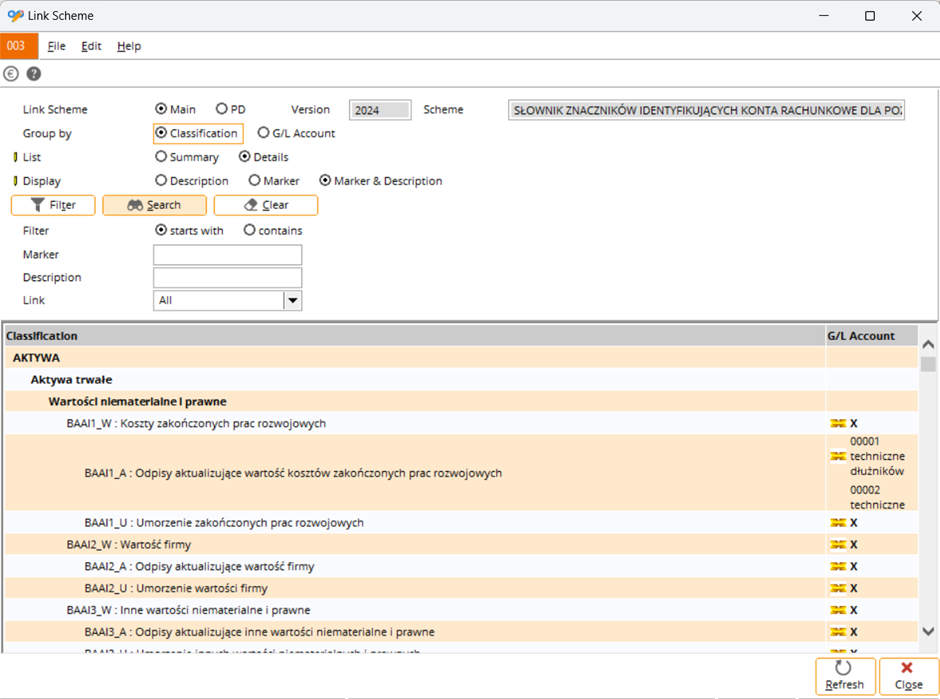
The Link Scheme screen is divided into two parts:
- Display preference
- Tree view of the classification and general ledger account link status
Display preference
This section allows you to change the tree view display layout, such as the linking and grouping the scheme. This section contains the following fields:
- Link scheme – In this field you can select to display the main schemes or PD schemes in the overview.
- Group by – In this field you can group by Classification or G/L account. Each general ledger account can only be linked to one classification, but each classification can have multiple general ledger accounts linked to it.
- List – In this field, select Summary to display only the general ledger accounts that are linked or Details to display the description of the first five general accounts that are linked. The subsequent general ledger accounts will be displayed as “.....”.
- Display – This field changes the display of the classification syntax in the tree view. If the classification does not have a marker, it will be displayed as blank if you selected Marker or Marker & description. This field is disabled if you have selected G/L account at Group by and Details at List.
- Filtering – This field is used to filter the classification or general ledger account.
Tree view
The tree view shows the classification and status of the linked general ledger account.
Linking and unlinking general ledger accounts
You can link the general ledger accounts to the classifications or link classifications to general ledger accounts.
Linking and unlinking general ledger accounts to classifications
To link the general ledger accounts to classifications, do the following:
- Select the Classification option at Group by in the Link Scheme screen.
- In the tree view, select the classification that you want to link to. You can only link classifications with marker (the classification will have a yellow icon under the G/L Account column). If there is no general ledger account linked to the classification, “x” will be displayed. Information will be displayed if the general ledger account is linked to the classification based on the selection at Display.
- Select the general ledger account in the Available section.
- Click the right arrow to move the selected general ledger account to the Selected section.
- Click Save.
To unlink the general ledger accounts, do the following:
- In the tree view in the Link Scheme screen, select the classification that you want to unlink. You can only unlink classifications with markers (the classification will have a yellow icon under the G/L Account column).
- Select the general ledger account in the Selected section.
- Click the left arrow to move the selected general ledger account to the Available section.
- Click Save.
Linking classifications to general ledger accounts
- Select the G/L Account option at Group by in the Link Scheme screen.
- In the tree view, select the general ledger account you want to link. Each general ledger account can only link to one classification. If the general ledger is already linked to a classification, the right arrow will be disabled. You have to unlink the classification first by selecting the linked classification in the Selected section and click the left arrow.
- Select a marker in the Available section and click the right arrow.
- Click Save.
Note: Only classifications with markers can be linked. Classifications without markers will be displayed in the tree view but cannot be linked.
Generate JPK_KR_PD output file
To generate the JPK_KR_PD file, go to , select the JPK_KR_PD checkbox at Type, and then click Export. The generated file will be in the export directory with the name format JPK_KR_PD_{YYMMDD}.xml. The JPK_KR_PD.xml file contains the following sections:
- Naglowek – This section contains the metadata of the file.
- Podmiot1 – This section refers to the entity that submits the report such as the company or organisation responsible for the accounting data.
- Kontrahent – This section displays all the counterparts such as suppliers and customers.
- ZOIs – This section provides a summary of the general ledger accounts for a given reporting period.
- Dziennik – This section contains the entries from the sales, purchase, bank/cash, and general journals.
- Ctrl (Kontrola)
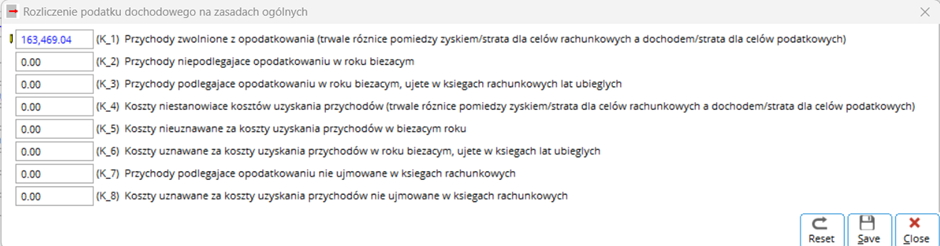
- Rozliczenia Podatku Dochodowego (RPD) – This section is similar to a tax summary page. There is a formula to calculate the value of the tags, but you can update the value of the tags. In the Finance > VAT//Statistics > Audit file > Audit file screen, go to RPD in the General ledger transaction section and click the K1_K8 button. You will see the screen below for you to enter the values.
| Main Category: |
Attachments & notes |
Document Type: |
Release notes detail |
| Category: |
|
Security level: |
All - 0 |
| Sub category: |
|
Document ID: |
32.431.121 |
| Assortment: |
Exact Globe+
|
Date: |
13-11-2025 |
| Release: |
|
Attachment: |
|
| Disclaimer |