Shop Floor Control – Registering time entries in touch screen user interface
Menu path
Exact Synergy Enterprise login page à Shop floor control page
Introduction
On this page, you can register the time entries for labor and machine hour items that have to be realized for the selected operation. The Start and Stop buttons on this page allow you to register the time spent on completing the operations. You can also access the overview of time registration from this page to view the statuses of the hour realizations for all operations.
Roles and rights
To access this page, the Shop floor control role is required. In addition to that, a few requirements need to be met. For more information, see the Roles and rights section in Logging in to Shop Floor Control via Exact Synergy Enterprise.
Notes:
- For more details on function rights, go to System à Setup à Security à Function rights.
- For more details on roles, go to System à Setup à Security à Roles.
What version are you using?
The information in this document is based on product update 252.
How do I register the time entries for the labor and machine hour items?
- Select the SFC Interface check box.
- At Operation, select an operation.
- Click Login. Once you have logged in, the production orders with the steps that will be executed on the selected operation will be displayed.
- Click on a row to view the details of the corresponding operation. The Operation details page will be displayed.
- Click Next. The Time registration page will be displayed.
- Click Start next to the respective labor or machine hour item to start the operation. Once you have clicked Start, Stop will be displayed. Click Stop to stop the operation.
Keep in mind:
- It is possible to realize more hours than the hours originally planned.
- When there are no labor or machine hour items to be realized, after clicking Next at step 5, the Issue materials page will be displayed.
- When there are no labor or machine hour items to be realized and no materials to be issued, after clicking Next at step 5, the Quantity complete page will be displayed.
- When there are no labor or machine hour items to be realized, no available materials to be issued, and the operation is the last operation in the production order, after clicking Next at step 5, the Production receipt page will be displayed.
How do I view the overview of time registration?
- Select the SFC Interface check box.
- At Operation, select an operation.
- Click Login. Once you have logged in, the production orders with the steps that will be executed on the selected operation will be displayed.
- Click on a row to view the details of the corresponding operation. The Operation details page will be displayed.
- Click Next. The Time registration page will be displayed.
- Click Registration overview. The Time registration overview page will be displayed.
- Click
 Collapse/Expand to expand the Criteria section.
 - In the Criteria section, define the required criteria, and then click Refresh.
Keep in mind: The overview of time registration can also be accessed via the same button on the Quantity complete or Production receipt page.
Tips and tricks
The planned hour items displayed on this page:
- are without the Backflush check box selected in the production order entries (in Exact Globe Next),
- are not assigned to the default operation with code “DFOP001”,
- are of any operation status,
- are of any production order status,
- have not been fully issued, and
- are assigned to the person who is currently logged in to SFC, person with system resource ID = 0, and person with phantom resource ID = -3 (applies only to labor hour items).
When registering time entries, you:
- can realize more than the planned hours,
- can start and stop multiple planned hour items at the same time,
- cannot add new lines on this page, and
- cannot start the planned hour lines with the operation status that is equal to Completed.
How Exact Globe Next looks for the best match line for hour realization
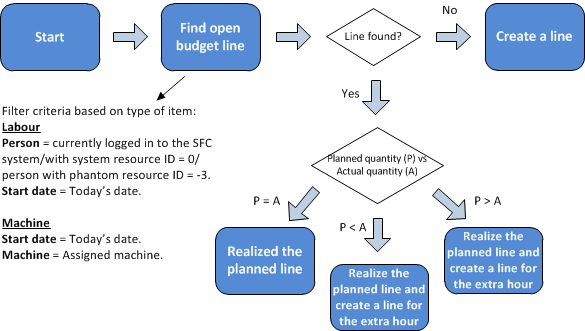
Validations
There are two levels of validations performed on this page. The first level of validation is performed on the touch screen, as detailed in the following table:
|
Scenario |
Explanation |
|
No hour item is displayed on the page. |
There are several reasons why there are no hour items displayed:
- There is no open budget line.
- The hour item has the Backflush check box selected in the production order entry (in Exact Globe Next).
|
|
Start time of the hour item is greater than the end time. |
This happens when a user clicks Start at 10:00, but the current time of the server is reset to two hours earlier. When the user clicks Stop at 11:00, the server registers it as 09:00. |
|
The same user starting an operation that has already started. |
This happens when the same user logs in and accesses to two machines (or more) at the same time, clicks Start on the first machine, and then without refreshing the page, clicks Start on the second machine. |
|
The same user stopping an operation that has already stopped. |
This happens when the same user logs in and accesses to two machines (or more) at the same time, clicks Stop on the first machine, and then without refreshing the page, clicks Stop on the second machine. |
|
Operation is completed. |
This happens when the back office user changes the operation status to Completed the same time as when the operator accesses the Time registration page. |
The second level of validation is performed upon saving the data to Exact Globe Next. See the following table for more explanations:
|
Scenario |
Explanation |
|
No serial or batch number assigned to the hour item. |
A user can register the hour item line on the Time registration page even if the line does not have a serial or batch item pre-assigned.
Upon saving to Exact Globe Next, this hour item line can still proceed because it is possible to realize machine hour in a production issue with no machine defined. |
Buttons
Columns
Labour/ Machine
This column displays whether the items are labor or machine hour items.
Hour item
This column displays the hour items that have to be realized.
Description
This column displays the descriptions of the hour items.
Type
This column displays the types of the hour items, which is either Run or Setup.
Start / Stop
Click Start to begin the operation or Stop to stop the operation. Next to this button, the date and time when the operation was last started will be displayed. The date and time are based on the date and time of the server.
Note: Once an operation has started, its status will be changed to Started.
Person
This column displays the IDs and names of people who are linked to or have started the labor hour items.
Note:
- This column is available only if you have selected the Use planning person check box on the Customise: Operation overview page.
- If the labor hour item is linked to a person with ID "-3", this column will be empty.
- If the labor hour item is linked to a person with ID "0", "0" will be displayed under this column.
- A labor hour item can be started multiple times by one person or more. When you have clicked Start for a labor hour item that is linked to a person with ID "-3", the labor hour item will be started with your name and ID displayed next to it. The same labor hour item will be replicated and displayed in a new line, which allows other people to start the same labor hour item.
- You can stop the labor hour item that has been started by another person. The labor hour item that is stopped will then be removed from this page.
Related documents
| Main Category: |
Support Product Know How |
Document Type: |
Online help main |
| Category: |
On-line help files |
Security level: |
All - 0 |
| Sub category: |
Details |
Document ID: |
24.145.496 |
| Assortment: |
Exact Synergy Enterprise
|
Date: |
11-11-2013 |
| Release: |
251 |
Attachment: |
|
| Disclaimer |