Introduction
This screen allows you to search and generate the ABC analysis in terms of reports and graphs in Microsoft Excel so that a better insight can be gained from the distribution of sales. The analysis is based on the 80/20 rule whereby 80% of the revenue is generated by only 20% of the items. The report will show which items generated the highest revenue or, depending on the selection in the search criteria, which debtors are your best customers. The report is based on processed invoices only.
Menu path
Order/Statistics/Statistics/ABC analysis
Description
You can filter the ABC analysis you want to generate on items or debtors by defining your search criteria and clicking Start. The items or debtors that match the search criteria you have defined will then be generated. A list of options appears if you click the Browse button in the Warehouse, Item, and Item group boxes. From the list, make your selection and click Select.
Show
Select how you want the report to be displayed. You can select any of the following:
Depending on the selection, different criteria are available.
If Items in Show is selected, the following criteria will be available.
Range section
Warehouse
Select the warehouse to display the ABC analysis of items belonging to the selected warehouse. You can select the All check box to display the ABC analysis of items belonging to any warehouse.
Date
Type or select the start date and end date to display processed invoices that were created within that period. You can also select the All check box to display processed invoices that were created on any date. By default, the All check box is selected.
Note: Typing or selecting only the start date will display processed invoices that were created on and after the selected date. Typing or selecting only the end date will display processed invoices that were created on and before the selected date.
Item
Type or select the item code to generate the ABC analysis for the selected item. You can also select the All check box to generate the ABC analysis for all the items. This selection is mandatory.
Item group
Type or select the item group or item group range to display the ABC analysis for the selected item group(s). You can also select the All check box to display the analysis for all the item groups. By default, the All check box is selected.
Assortment
Select the assortment to generate the ABC analysis for the items linked to the selected assortment. You can also leave the box(es) empty to generate the analysis report with any assortment.
Note: The number of Assortment boxes depends on the settings defined at Order/Items/Assortments.
Options section
Sort by
You can select how you want the items to be sorted. Select any of the following:
-
Revenue - Select this to sort the items based on revenue. By default, this is selected.
-
Quantities - Select this to sort the items based on quantity.
ABC analysis section
A, B, and C
Type the percentage in the A, B, and C box. A, B, and C box refers to the three groups that can be used to generate the ABC analysis report. By default, the 20/80 rule applies.
Note: The A box refers to the group of items that have the highest revenue or items with the highest sales while the B and the C box are items that make up the rest of the total revenue or quantities sold. The total percentage of A + B + C must be 100%.
If Debtors is selected in Show, the following criteria will be available.
Range section
Warehouse
Select the warehouse to display the ABC analysis of debtors linked to the selected warehouse. You can also select the All check box to display ABC analysis of debtors belonging to any warehouse.
Date
Type or select the start date and end date to display processed invoices that were created within that period. You can also select the All check box to display processed invoices that were created on any date. By default, the All check box is selected.
Note: Typing or selecting only the start date will display processed invoices that were created on and after the selected date. Typing or selecting only the end date will display processed invoices that were created on and before the selected date.
Ordered by
Type or select the ID or name of the debtor who placed the sales order to display processed invoices with the selected debtor. You can also select the All check box to display processed invoices with any debtor. This selection is mandatory.
Classification (for ordered by customers)
Type or select the classification of the debtor(s) who placed the sales order to display processed invoices of the debtor(s) with the selected classification. You can also select the All check box to display processed invoices of debtors with any classification.
Note: The classification of the ordered by debtors depends on the settings defined at Finance/Accounts receivable/Maintain under Basics tab (Classification box). You can also define classifications at System/General/CRM/Classifications.
Invoice to
Type or select the ID or name of the debtor who received the processed invoices. You can also select the All check box to display the processed invoices of any debtor who received processed invoices.
Classification (for invoice to customers)
Type or select the classification of the debtor(s) who received the processed invoice. You can also select the All check box to display the processed invoices of debtors with any classification.
Note: The classification of the invoice debtors depends on the settings defined at Finance/Accounts receivable/Maintain under Basics tab (Classification box). You can also define classifications at System/General/CRM/Classifications.
Options section
This section is not enabled because by default, the debtors are sorted by Revenue.
ABC analysis section
A, B, and C
Type the percentage in the A, B, and C box. A, B, and C box refers to the three groups that can be used to generate the ABC analysis report. By default, the 20/80 rule applies.
Note: The A box refers to the group of debtors that have the highest revenue or the debtors with the highest sales while B box and C box are debtors that make up the rest of the total revenue or quantities sold.
Button
Start
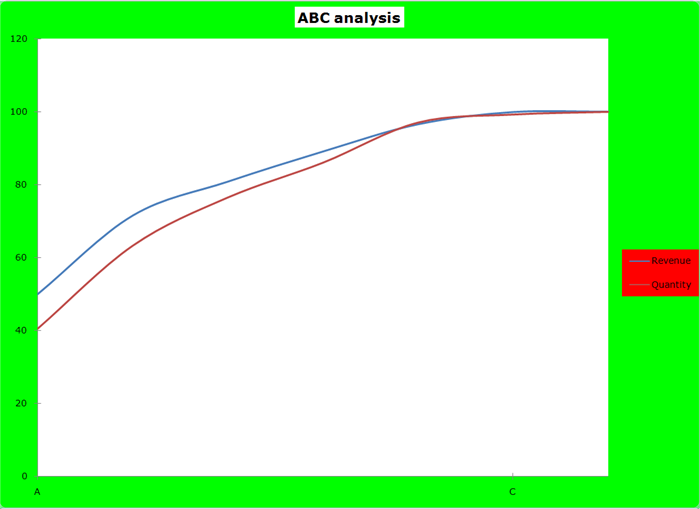
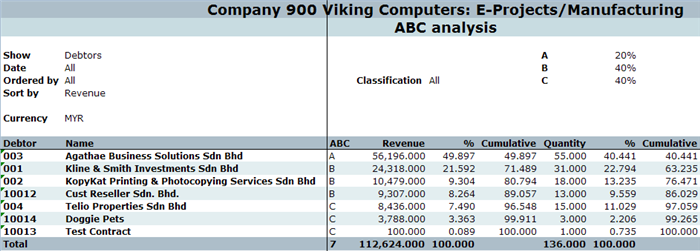
Click this to generate the ABC analysis report of the items or debtors in Microsoft Excel based on the defined criteria. Below are the examples of the graph and report generated for the ABC analysis of debtors.
Graph
Data
Close
Click this to exit.
Related document
Currently there is no related document.