Menu
path: Project / Entries / Realizations
Background
Currently,
entering of expense claim in realization only captures the Gross amount.
However, users need to record taxes associated with the expense claim. This is
important for most markets, and in many cases, is a legal requirement, as in North America.
What
has been changed
With this
release, expense claim in realization is able to capture up to maximum of 5 taxes.
Precondition
and scope
·
This functionality only available for US and
Canada
legislation license.
·
This functionality only available for expenses
claim entered in Home currency
·
The number of new column Tax code, Tax basis, and Tax
amount (one / multiple) in realizations application is determined by
[System settings > G\L Settings > Show: Maximum number of tax
codes
]
·
Resource who enters expense claim MUST
have a creditor account linked for reimbursement
·
Invoice proposal will generate invoice based
on the total account linked for reimbursement
·
All expense entry with taxes will NOT be editable in
invoice proposal. All amount columns including No invoice, Postpone,
Invoice, Price and Amount will be locked in invoice proposal. This is to
prevent user from changing the taxed value that will lead to serious audit and
compliance issue.
·
Feature that fills in default tax code in tax code columns
based on tax schedule defined is not available, if account linked to a project
does not have a DELIVERY address. As system will compare address defined in tax
schedule against the account's delivery address, and only fill in the default
tax code in tax code columns when two addresses match.
·
If user ordered an expense item in sales order with tax
code that is different from the tax code he used in realizations, the tax code
in sales order will be replaced by the tax code entered in realizations. And
sales order amount will be recalculated based on the new tax codes.
·
Tax columns only available in project realization screen.
Other applications in e-Project will NOT show tax columns.
Screen
shots
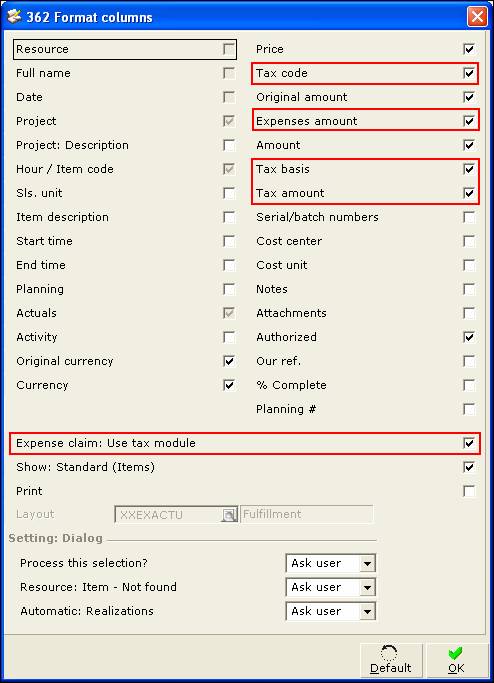
1. There are a few new checkboxes in format column of
realization. All these new columns/checkboxes only valid if [System /
General / Settings – general ledger setting tab, ‘Use tax module’
] is checked.
If this system setting is unchecked, the Columns definition page will hide all the checkboxes for
new column (settings in red box in the following figure).
a) Tax code - Only enabled when 'Expense claim:
Use tax modules' is checked in columns definition page and user enters expense
claim in Home currency. Otherwise it will be set to 0 and disabled by
default. Valid values for this field is if the
current line tied to a billable project, only tax code with transaction type =
‘both’ is selectable.
If the current line tied to a non-billable project, tax code with transaction
type = ‘purchase’ or ‘both’ is selectable.
b) Expenses amount - Only enabled when 'Expense claim:
Use tax modules' is checked in columns definition page and user enters expense
claim in Home currency. Otherwise it will be set to 0 and
disabled by default. This is the NET expense amount (excluding
tax). Whereas the final tax inclusive expense amount will be stored in the
existing Amount column. For data retrieval, its value is calculated with
formula [Expense amount = Amount - Tax Amount]. For expense entry in foreign
currency, this column will be set to the value of the ‘Amount’ column. If Expense amount column is not selected but Tax
code column is selected in the Columns definition page, once Expense Item
code and Actuals are entered system will calculate
net invoice amount using [Actuals x Cost price] and
then determine the tax basis to work out the final tax amount.
c) Tax basis – This column is always disabled. The default value is 0.
This is the basis amount for tax amount calculation. Its value is depending on
the tax code calculation basis settings.
d) Tax amount – This column is always disabled. The default value is 0.
This is the final tax amount for the current line. System fills the calculated
tax amount in this column. When the tax amount is changed, the Amount
column will be changed as well with formula [Amount = Expense amount + Tax
Amount].
e) Expense claim: Use tax module – User can
determine if they want to use tax for expense claims. When checked (use tax for
expense claim), Amount column becomes non-editable, whereas Expense amount and Tax
code column become editable. When not checked (DO NOT use tax for expense
claim), Amount column becomes editable, whereas Expense amount
and Tax code column become non-editable. If user has keyed in taxes in
project realization screen and then they uncheck this setting, when back to the
project realization screen system will prompt the user 'Process this
selection?' message. If user clicks <Yes> then all lines entered earlier
will be saved. If click <No> then all entered lines will be DISCARDED.
2. The total expense amount (including taxes) will be invoiced
to the customer, as well as get reimbursed to staff. There is a new ‘Currency’
column in invoice proposal main and details screen to show the currency of the
shown amount (Sales Order currency). Changing invoice amount
in invoice proposal is not possible for tax inclusive expense claim. That means
all amount columns in invoice proposal are locked for amendment. If
sales order is linked to the project, after generate invoice, taxes will be
copied/replaced to the Sales Order.

