Batch 327: The new functionalities for INTRASTAT
Intrastat
The INTRASTAT System was
created by the European Union (EU) for the purpose of satisfying the need for
information relating to trade between the EU countries. For the INTRASTAT system,
detailed, timely and reliable data on imports from EU countries and/or exports
to EU countries are indispensable for domestic authorities. As for data relating
to the trade with countries other than the EU, are compiled using customs
declarations. The
information that must be included in the INTRASTAT report differs from country
to country. The reports are sent to domestic authorities and are used for trade
statistics.
Previously
INTRASTAT data are stored in the logistic transaction lines, and during entry
the user could adjust the INTRASTAT data. At the moment of processing invoices
(is it sales or purchase) the INTRASTAT data were stored and ready for
generating an official return.
To take
the best from the old and current situation, Exact Globe 2003 will follow these
steps:
- At
entry of logistic transactions where movement of physical goods is involved
(i.e. purchase orders, sales orders, direct invoices, but not normal sales
invoice entry) all possible defaults will be filled for the user from the
master data of the items and accounts.
- The
user can edit that information at the moment of entry, and the data will be
stored in the transaction line.
-
Before generating the return, the user cans edit/correct/update the INTRASTAT
data.
- At
generating a final return, the transaction lines are marked as ‘Completed’.
To be able to select the
right information from the system, there are some requirements:
-
All inventory parts must be connected to a
customs statistical code. (For example, code 42031000 for leather clothes and
code 44210000 for coat hangers.)
-
Special 'nature of transaction codes' and
transportation codes (e.g., mode of transport) and country code must be
reported for the exported/imported parts.
-
The value of the exported parts is reported as
expected invoiced value.
-
The net weight of the products.
-
Members of EU countries must be defined.
- User needs to ensure
that the INTRASTAT settings in [System > General > Settings > INTRASTAT
settings] is turned on.
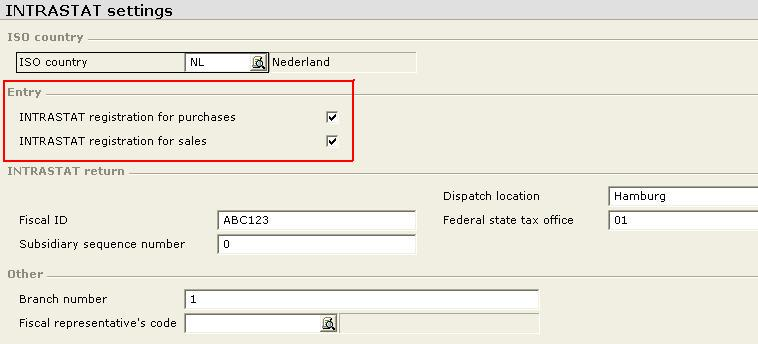
This
setting is available to the following legislations:
-
Austria
-
Belgium
-
Germany
-
International legislation
-
Spain
-
Netherlands
-
United Kingdom
-
France
-
Ireland
User can set the default
values for INTRASTAT by using 2 ways:
-
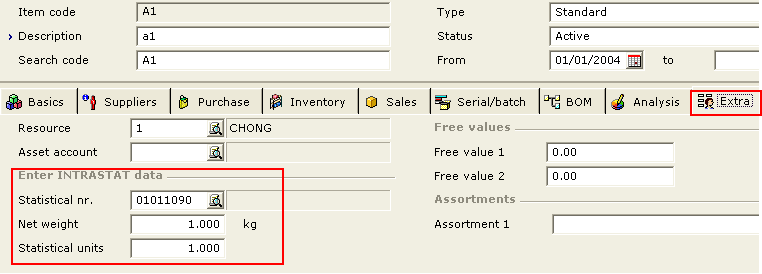
Enter default value for INTRASTAT during create
an item
Create an item and filled
in the INTRASTAT fields in the 'Extra' tab as picture below:
-
Via Menu Path
[System > General > Settings > INTRASTAT settings].
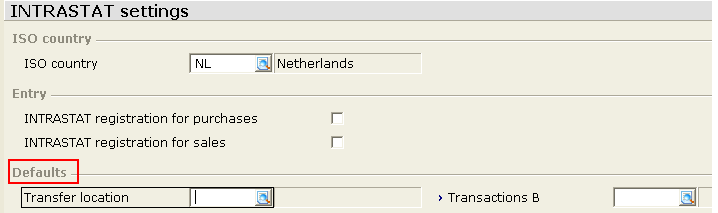
The 'Defaults' field show
in the screen will be different based on different legislation. If user filled
in all the default values for INTRASTAT, user no need to fill in these fields
again during making the purchase order entry, sale order entry and direct
invoice entry.
After the defaults are set, user can create
sales order, purchase order, direct invoice with INTRASTAT data.
-
Making Purchase Order entry:
Via menu path: [Purchase >
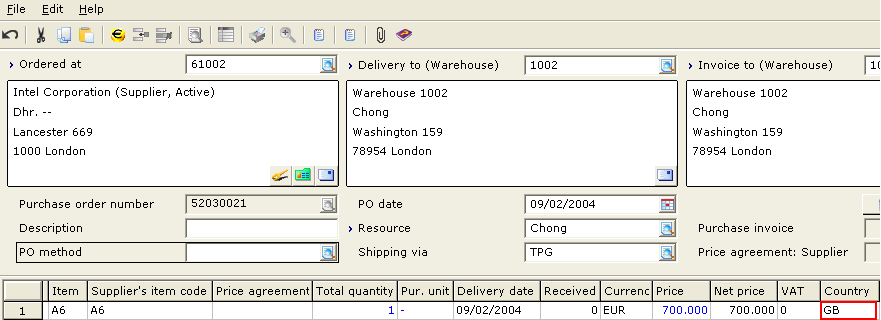
Entries > Purchase orders], create a new purchase order, there is a Country
field exist in the PO lines.
If the Customer's delivery address has a
different country code from the 'Company data settings' in menu path [System>General>Settings],
For example the delivery country is UK and the
Company's country code is NL, a default value follow the delivery country code
will automatic fill in the country field like picture below:
If the delivery country is
same with the Company's country code
then browse on the Country field and
select an EU country like the
picture below:
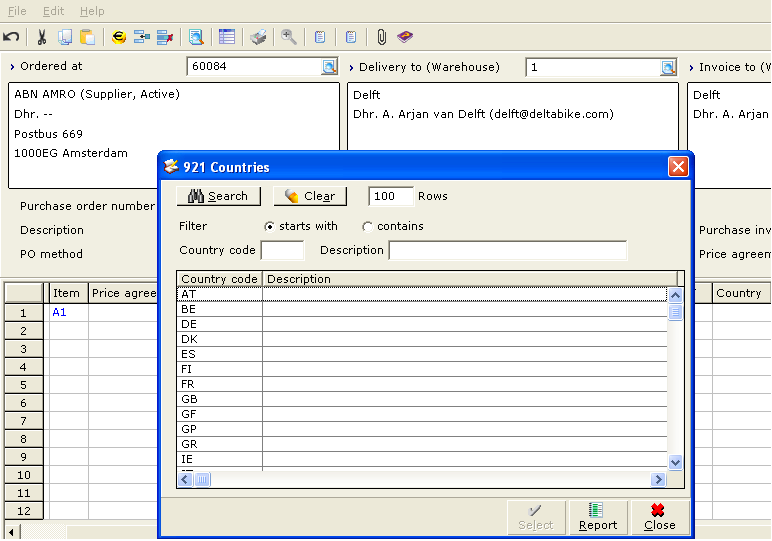
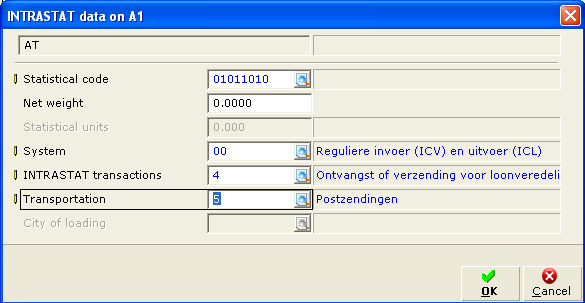
After fill in the country
field and <Tab>, this INTRASTAT window will be displayed. The statistical code
field and net weight field is filled in automatically but we can fill in new
value for these two fields, enter the entire necessary field and click <OK>.
Receipt the PO and all the INTRASTAT data
will be stored. User
can view and edit this data via menu path: [Invoice
> Statistics > Intrastat]. Then user can generate an INTRASTAT return report
based on these INTRASTAT data.
-
Making Sales Order entry:
Via menu path: [Order >
Entries > Sales orders], create a new sale order, there is a Country field exist
in the SO lines.
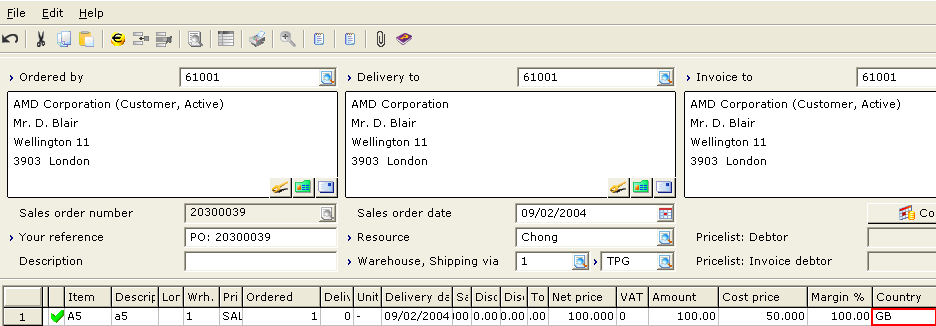
If the Customer's delivery address has a
different country code from the 'Company data settings' in menu path [System>General>Settings],
For example the delivery country is UK and the
Company's country code is NL, a default value follow the delivery country code
will automatic fill in the country field like picture below:
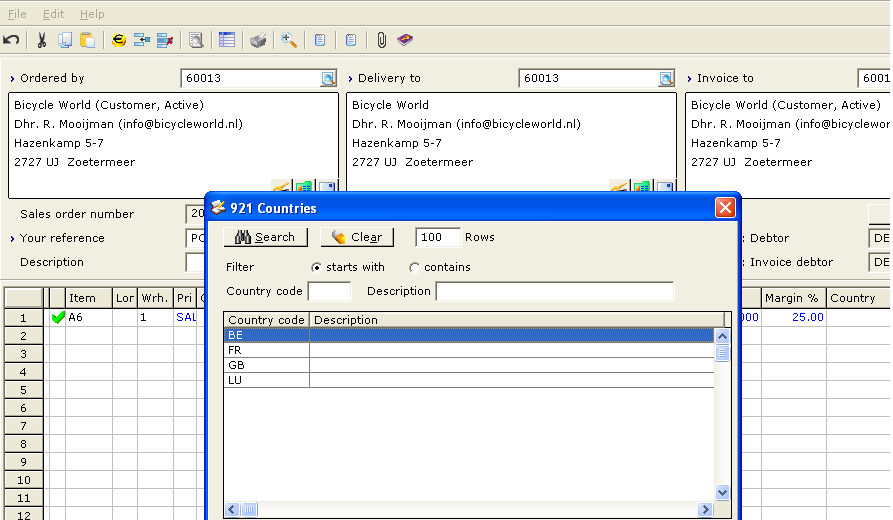
If the delivery country is
same with the Company's country code
then browse on the Country field and
select an EU country like the
picture below:
After fill in the country
field and <Tab>, this INTRASTAT window will be displayed. Enter every necessary
field and click <OK>.
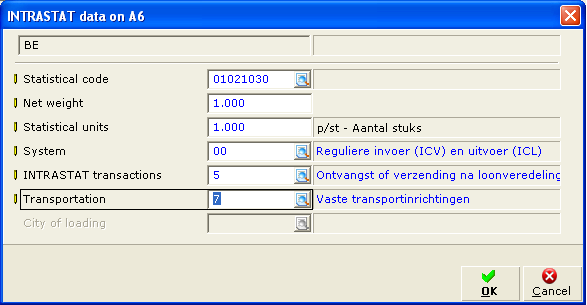
Fulfill the SO and all the INTRASTAT data
will be stored. User
can view and edit this data via menu path: [Invoice
> Statistics > Intrastat]. Then user can generate an INTRASTAT return report
based on these INTRASTAT data.
- Make Direct Invoice Entry
Via menu path: [Invoice >Entries>Direct
Invoice], create a new direct invoice, in the lines notice a Country field
exist. Browse on the Country field and enter an EU country.
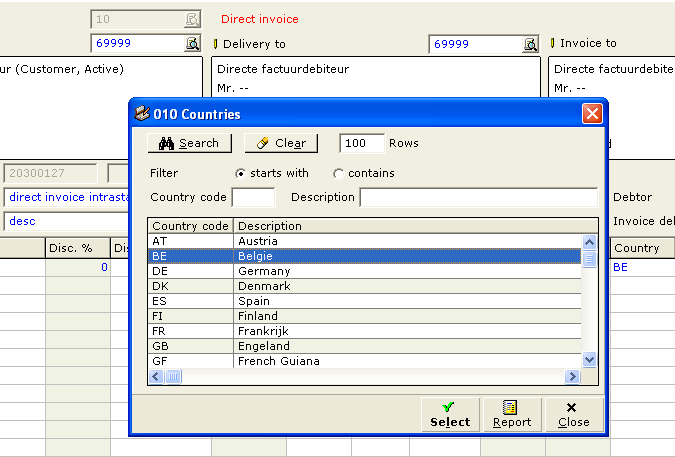
After fill in the country
field and <Tab>, this INTRASTAT window will be displayed. Enter every necessary
field and click <OK>.
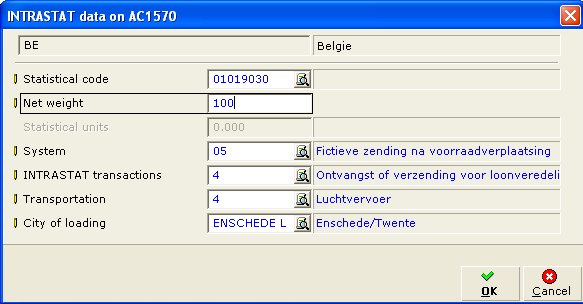
Process the Direct Invoice and all the INTRASTAT data
will be stored. User
can view and edit this data via menu path: [Invoice
> Statistics > Intrastat]. Then user can generate an INTRASTAT return report
based on these INTRASTAT data.
-
Generate INTRASTAT return
After user has receipted
the PO, fulfilled the SO, processed the direct invoice and processed a stock
return. User can see the sales and purchase data in this menu path [Invoice/Statistics/Intrastat].
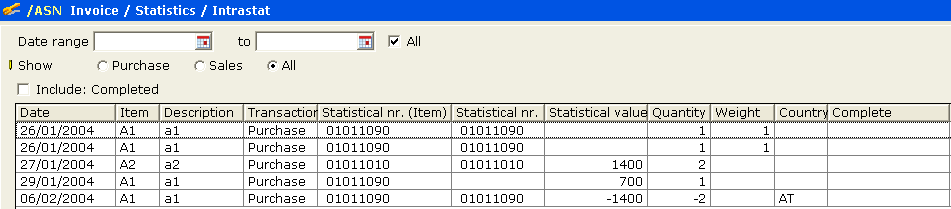
Select one of the return
and click <Start> button, report will be generated in the folder selected by
user.
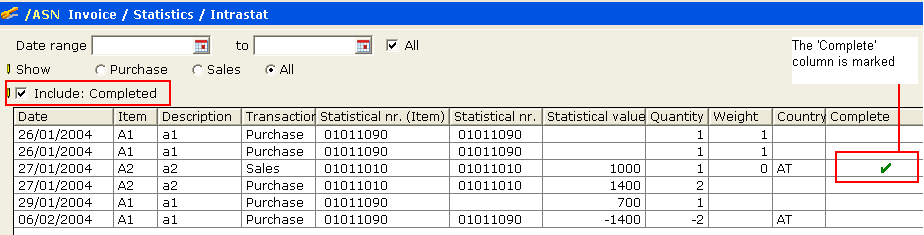
User cannot view the
return after the report has been generated. User need to check the 'Include:
Completed' checkbox to view the return again. The return which report had been
generated out; Its 'Complete' column will be marked.
Besides the example above,
below is the document that related to INTRASTAT.
-
INTRASTAT in CRM
Maintenance, please refer to release note no:
06.419.459
| Main Category: |
Support Product Know How |
Document Type: |
Release notes detail |
| Category: |
Release Notes |
Security level: |
All - 0 |
| Sub category: |
Details |
Document ID: |
06.423.905 |
| Assortment: |
Exact Globe
|
Date: |
09-05-2017 |
| Release: |
|
Attachment: |
|
| Disclaimer |