How-to: Creating Exact Shared Services (ESS) account and activating e-Invoicing using PEPPOL
Introduction
In Exact Globe+, you can create an Exact Shared Services (ESS) account. Once this account is created, you can subscribe to send and receive e-Invoices using PEPPOL.
Note: The electronic invoicing functionality is available for the Belgian, Dutch, and French legislations. However, registration using the Exact Shared Service (ESS) is only applicable for the Belgian legislation and new registrations. If you already have an existing registration using the Exact Shared Cloud Service (ESCS) for sending e-Invoices using PEPPOL, continue using the existing registration.
Steps to create an ESS account:
- Create user in ESS
- Use the user created in step 1 to finalise the setup of the connection between the ESS account and adminstration.
- Authorise the ESS account in Exact Globe+.
- Activate e-Invoicing using PEPPOL
- Company screening
Create user in ESS
Note: The user name defined at Username in the Electronic Invoicing via Peppol section (at ) must be in email format and it has to be unique for every administration. You can also use aliases.
- Go to .
- Click the icon at Create Exact Shared Services account in the Electronic invoicing via Peppol section. When you create the ESS user, an AzureB2C user will also be created.
-
Define the fields and click Next.
-
Enter your username (this is the same as your Exact Globe+ username in email format), password, and retype your password. Select the Yes, I accept the Exact terms and conditions checkbox.
Note: The password must be at least 10 characters long with a lowercase letter, uppercase letter, number, and symbol.
-
Click Next. You will see the following message if the ESS user is successfully created:
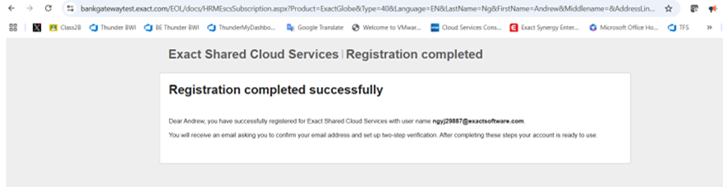
Once you have created the account, check your email for the verification email. Follow the instructions in the verification email to set up two-factor authentication to complete the verification.
Finalise connection between ESS account and administration
After creating the ESS user, you must finalise the setup of the connection between the ESS account and administration.
- Go to .
-
Click the icon at Authorise Exact Shared Services account in the Electronic invoicing via Peppol section.
-
Enter the username and password that you created earlier and click Sign in. This will finalise the registration of the ESS account by storing the ESS related data in the Exact Globe+ administration.
Note: The password must be at least 10 characters long with a lowercase letter, uppercase letter, number, and symbol.
If you have completed all the steps correctly, the icon at Create Exact Shared Services account in the Electronic invoicing via Peppol section at will be disabled.
Note: Each company needs its own ESS account.
Authorise ESS account in Exact Globe+
Once the registration of the ESS account is finalised, you have to click the icon at Authorise Exact Shared Services account in the Electronic invoicing via Peppol section at again to authorise the ESS account in Exact Globe+. The authorisation status will display a green check mark.
Note: This must be done every 90 days.
Activate e-Invoicing using PEPPOL
For Belgian administrations, you have to activate e-Invoicing using PEPPOL if you have not subscribed to PEPPOL before.
Note: For Belgian administrations that are using the existing Exact Shared Cloud Services connection and Dutch administrations, you can subscribe using another method and you are not required to activate the e-Invoice using PEPPOL.
- Go to .
-
Click the Activate e-Invoicing via Peppol button in the Electronic invoicing via Peppol section.
Note: This button is enabled only if you have created an authorised account in ESS.
-
The PEPPOL onboarding screen will be displayed for you to complete the subscription. The onboarding process is the normal process that includes company screening and activation of PEPPOL.
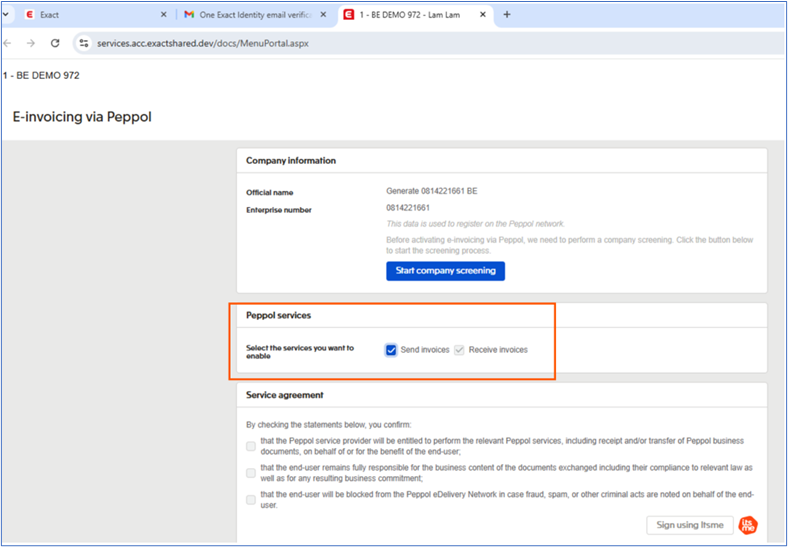
-
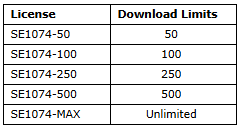
By default, the PEPPOL service is based on the license option in your license. If you have license SE1100: E-Invoice, the Send invoices checkbox will be selected by default. If you have licenses SE1074-50, SE1074-100, SE1074-250, SE1074-500, and SE1074-MAX, the Receive invoices checkbox will be selected by default.
-
Go through the company screening wizard.
-
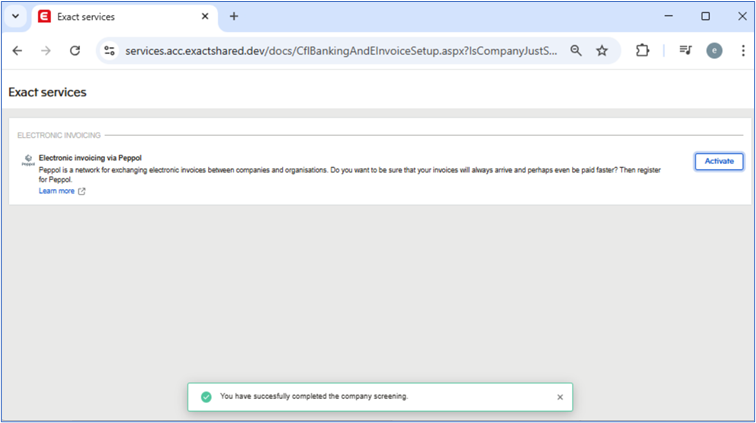
Once you have completed the company screening, you will see the message below and you will receive an email.
-
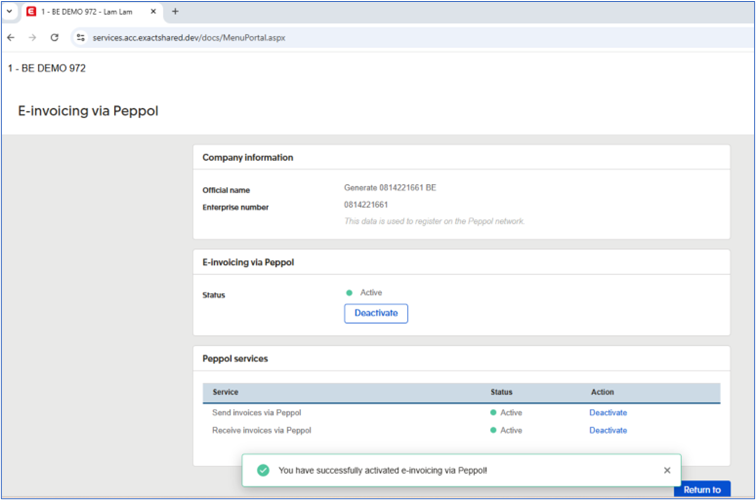
Click Activate to activate the e-Invoicing using PEPPOL. You will see the message below once the activation is completed.
Sending invoices using PEPPOL
You can send invoices using PEPPOL after you have subscribed as a PEPPOL sender, and the debtor to be invoiced is also registered as a PEPPOL receiver.
To send invoices using PEPPOL to a debtor, certain settings are required. In the debtor maintenance, select Invoice debtor and select Electronically at Send method. Define the PEPPOL receiver under the VAT section in the Financial tab in the debtor maintenance. For Belgian receivers, define the VAT number and for Dutch receivers, define the Chamber of Commerce number or OIN number. Select the supported UBL format.
You can process the invoices at (click the Processed button) or . In the Print invoice screen, select Final at Process and select Based on account at Output.
View sent and received invoices
You can view the invoices that were sent using PEPPOL at or in the Sent tab. Go to the Received tab to view the received invoices.
Download and import invoices
To download and import invoices, go to . Click Download to retrieve the invoice data from PEPPOL and click Import to import the downloaded invoices into purchase invoices.
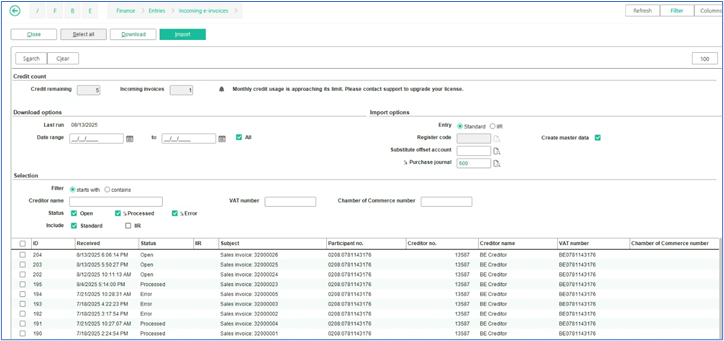
There will be a monthly renewable download quota to monitor and limit the number of invoices that can be downloaded based on the type of license purchased. You can also view the number of downloads already used and availability of remaining credits for the current month. The system will automatically renew the credit during the first run of the month.
You must have one of the licenses below that indicates the limit of downloads per month when receiving PEPPOL invoices. The credit will be deducted after the invoices are downloaded.
Company screening
During the company screening, the Ultimate Beneficial Owners (UBOs) in your organisation are checked. This is to verify your company information. In the company screening screen, a list of UBOs that are registered with Exact are displayed.
What do you have to do?
Check the list of UBOs
You will see the list of UBOs that are registered with Exact.
-
Type the date of birth for every UBO.
-
If a UBO is not in the list, add the UBO.
Note: Add UBOs only. Do not add directors or legal representatives (unless they are a UBO).
Signature of director or legal representative
Ask the director or legal representative to sign. This must be someone who is registered with the Crossroads Bank for Enterprises (KBO), Chamber of Commerce (CoC), or Chambre de Commerce et de I'Industrie (CCI).
Person is not known
If the person is not known an extra screen will be displayed.
-
You can upload the information from KBO, CoC, or CCI, or
-
send an email to another person to sign.
Approval
If the signatory is known, the screening will be approved immediately. However, if the signatory is not known, the application will be reviewed manually. This may take a few days. You will receive an email once the screening is completed or you will receive the email from Exact requesting for additional information.
PEPPOL registration
You should have the PEPPOL registration signed by the same director or legal representative who signed the company screening. This person should be known to Exact. Once they have signed, your registration will be automatically approved and you can immediately start using e-Invoicing.
For France
The SIREN/SIRET field in the company data settings () must be defined. Alternatively, the SIRET number must be defined in the company form to create the ESS account. For more information on the company and instruction forms, see e-Invoicing France - template forms for PA (Plateformes Agréées).
Related documents
| Main Category: |
Attachments & notes |
Document Type: |
Online help main |
| Category: |
|
Security level: |
All - 0 |
| Sub category: |
|
Document ID: |
32.699.634 |
| Assortment: |
Exact Globe+
|
Date: |
04-09-2026 |
| Release: |
|
Attachment: |
|
| Disclaimer |