|
|
Installing Exact Synergy Enterprise on Windows Vista Enterprise
1. Introduction
1.1 Purpose of this manual
This manual explains how to install and configure Exact Synergy Enterprise on Windows Vista Enterprise on your computer.
As the result of internal changes in Windows Vista compared to the previous versions of Windows, currently there is no official support for the installation of Exact Synergy Enterprise. However, there is also clear internal demand for making it possible.
To solve this problem, this manual provides a thoroughly tested installation procedure.
1.2. Target audience
This manual caters to all users without going into much technical details, and does not require in-depth knowledge of how Exact Synergy Enterprise interacts with Windows.
The only goal of this manual is to give you a guide to install and have Exact Synergy Enterprise running as quickly as possible, so that you can use it internally to learn, experiment or present it to an interested party.
Nevertheless, it does require you to roll up your sleeves and change several settings in Windows Vista; and it will provide you with all the necessary information as you go along.
Note that sometimes this manual will refer to other documents to complete certain steps. In those cases, it will provide the document number and specific paragraphs for you to go through.
1.3. A quick overview
To install Exact Synergy Enterprise on Windows Vista, you need to perform three steps:
- verify that all software needed by Exact Synergy Enterprise is installed and properly configured
- download Exact Synergy Enterprise using Exact Internet Installer (product updater), and
- configure Exact Synergy Enterprise.
2. The installation and configuration procedure
2.1. Verifying that all software needed by Exact Synergy Enterprise is installed
In addition to the hardware requirements outlined in 14.139.246, section 1.2.2, the following software has to be installed on your target system:
- Windows Vista Enterprise with Service Pack 1 and the latest updates applied
- MS SQL Server 2005 updated with the most recent patches and service packs (look into 15.249.342 if you need to install it yourself)
Two extra items that you might need to configure for MS SQL Server 2005 (but most likely you will need to talk to your system administrator to do it for you):
1) Your username must be in the list of MS SQL Server 2005 Security Logins with a role of sysadmin.
2) It is possible to user MS SQL Server 2005 Express or Developer editions instead of the full MS SQL Server 2005. However, you will need to configure them additionally as described in this article from Microsoft.
- MS Internet Information Services (IIS) 7.0 updated with the most recent patches and service packs (refer to 15.230.218, if you need to install it yourself);
- MS .NET Framework 2.0 or a later version (version 2.0 will be installed automatically with MS SQL Server 2005);
- Exact Internet Installer (Product Updater T15 AE) with a version number 1.0.0.320 or greater (to download it, look up an item called ProductUpdater in your live Synergy and download the latest T15 AE version); and
- Exact Synergy Enterprise license file (to download it, look it up in the account 390000 under Contracts in your live Synergy).
2.2. Verifying that all software needed by Exact Synergy Enterprise is properly configured
2.2.1. Verifying Internet Information Services (IIS) 7.0 configuration
To make sure that IIS 7.0 is properly configured, follow these five steps:
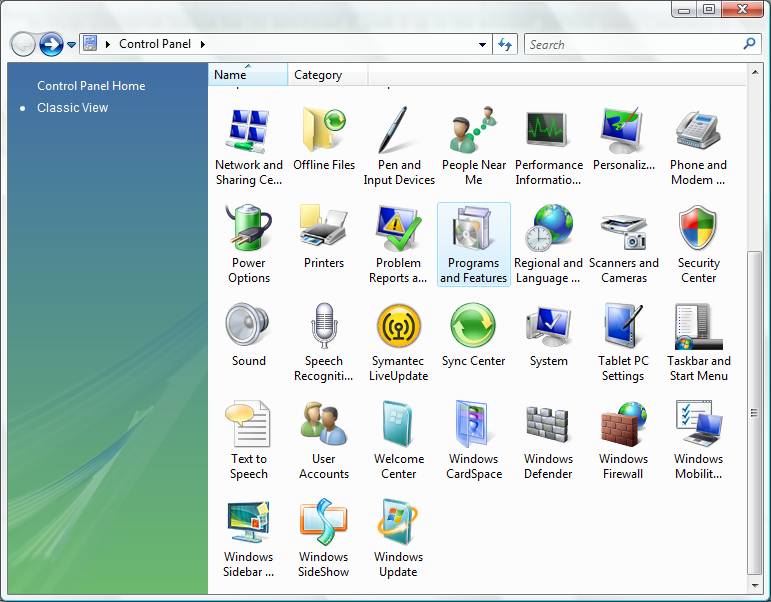
- Go to the Windows Control Panel and click on Programs and Features.
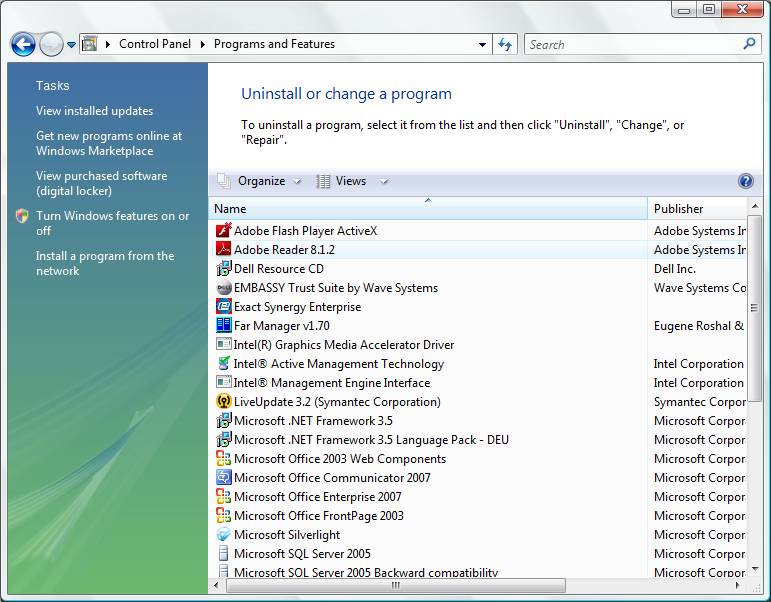
- Select Turn Windows features on or off in the left window pane.
- Enable the IIS 7.0 components as described in 15.448.052.
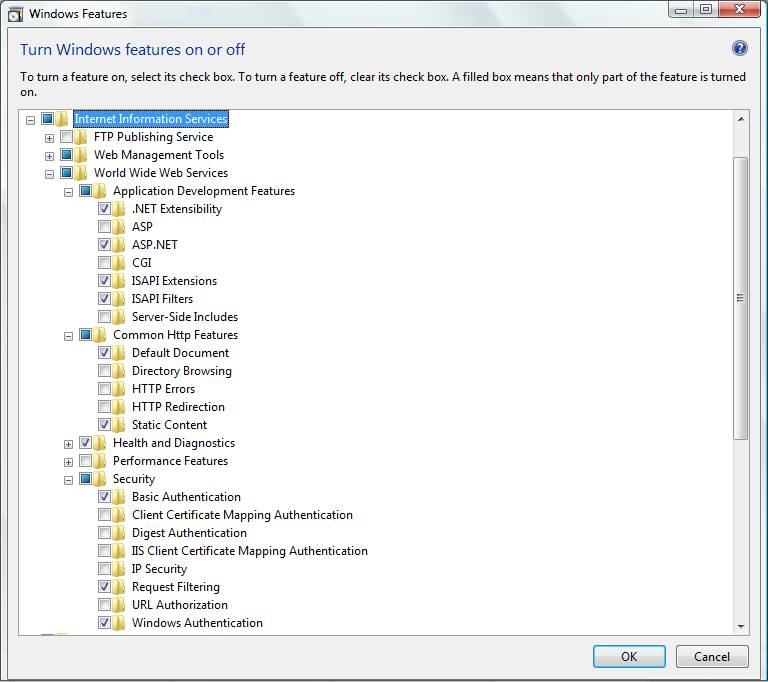
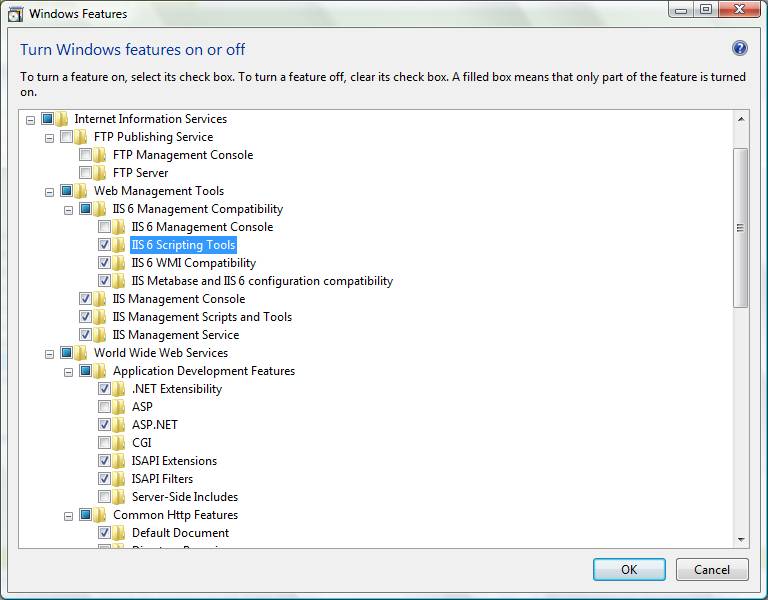
- In addition to the components you enabled in the previous step, open the following folders in IIS 7.0 configuration:
- Internet Information Services\World Wide Web Services\Common HTTP Features and enable HTTP Errors component
- Internet Information Services\Web Management Tools\IIS 6 Management Compatibility and enable these 3 components:
- IIS 6 Scripting Tools
- IIS 6 WMI Compatibility
- IIS Metabase and IIS 6 configuration compatibility
- Click OK and wait for Windows Vista to update itself.
2.2.2. Verifying MS SQL Server 2005 configuration
To ensure that Exact Synergy Enterprise can freely access the database, a new security login needs to be added to MS SQL Server 2005. Follow these three steps:
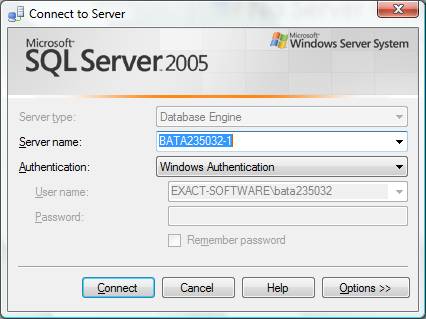
- Start the MS SQL Server Management Studio and connect to the database engine with your username and password. To do that, make sure that Windows Authentication is selected before you click Connect and your username and password will be used automatically.
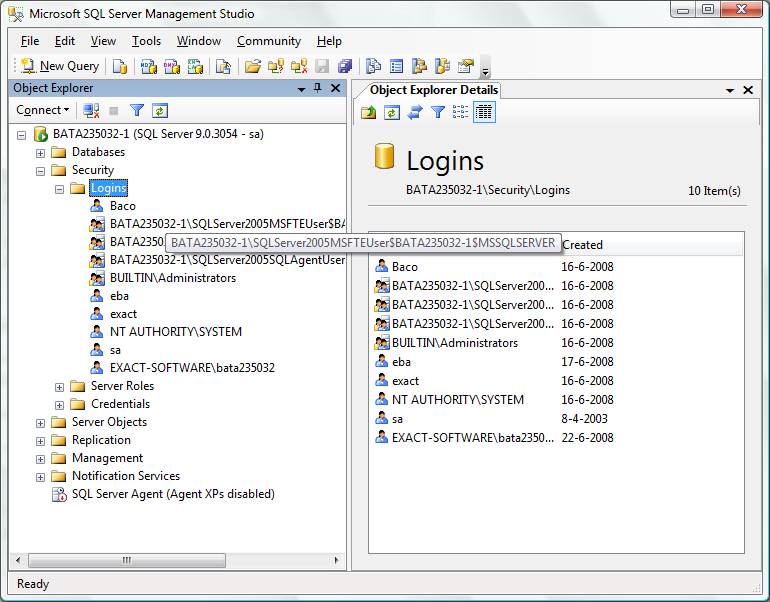
- In the left window pane called Object Explorer, expand the selected server name, select the Security directory, right-click on the Logins directory and then select New Login.
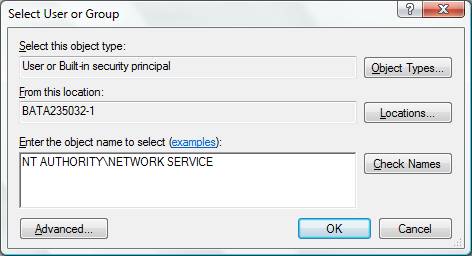
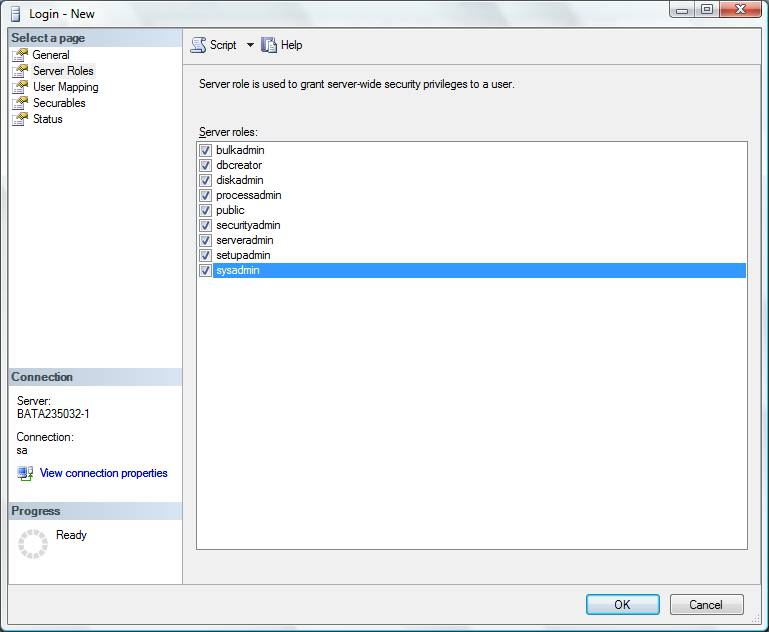
- Add a new login with a login name NT AUTHORITY\NETWORK SERVICE (note that the From this location box should contain the name of your computer) and enable all of its Server Roles. Refer to 15.249.342, section 6-9 for detailed instructions on how to do it, and click OK.
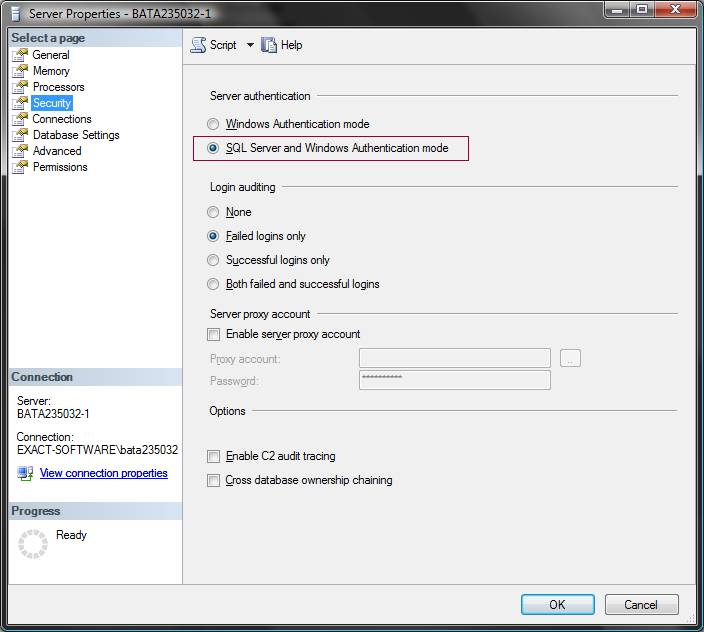
- Right-click on the name of your SQL Server in the Object Explorer and click on Properties, select the Security page in the list of pages in the left part of the window and check that Server Authentication is set to SQL Server and Windows Authentication mode.
2.3. Downloading Exact Synergy Enterprise using Exact Internet Installer (product updater)
You will need to download the actual Exact Synergy Enterprise files before it can be configured in the application server. Note that the product updater needs to be run with an extra parameter.
To download Exact Synergy Enterprise to your computer, follow these five steps:
- Open the folder where you have downloaded the product updater to, and create a shortcut for the product updater executable by right-clicking it and selecting Create Shortcut.
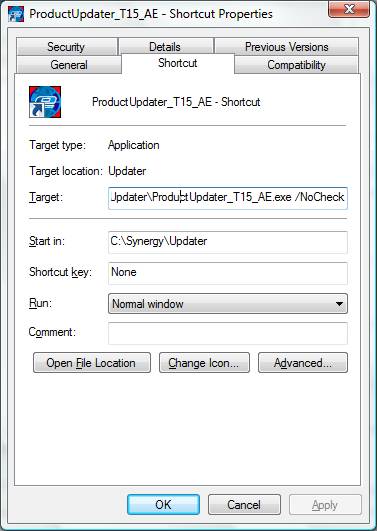
- Right-click the shortcut and select Properties, and edit the Target on the Shortcut tab by adding a parameter so it looks similar to this:
- <PATH>\ProductUpdater_T15_AE.exe /NoCheck where <PATH> is the actual path to the shortcut on your computer, e.g. C:\Desktop.
- Save the shortcut by clicking OK and running it as an administrator (right-click on it and select Run as administrator).
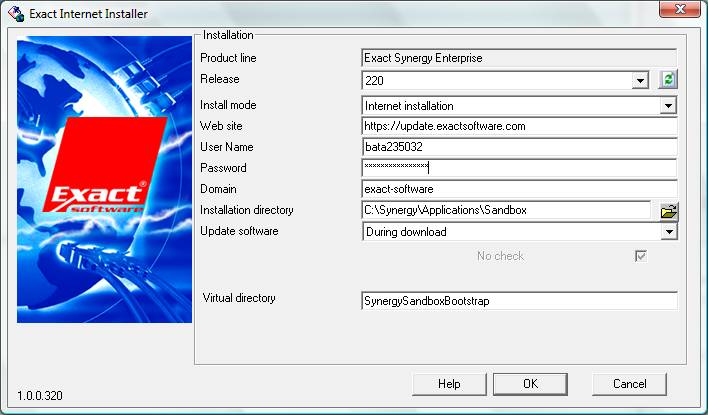
- Fill in your name, password and domain, select the release version of Exact Synergy Enterprise that you want the product updater to download (e.g. 220), the installation directory, and the so-called virtual directory. Remember:
- Do not select a folder in the Program Files directory as the installation directory because doing so will lead to a non-working installation.
- Write down the name of the virtual directory so you can use it later.
- Refer to15.246.969, steps 5-7 in case you need additional instructions for this step.
- Once all files are downloaded, click No in the product updater window when offered to start Exact Synergy Enterprise.
2.4. Configuring Exact Synergy Enterprise
Follow these eight steps to configure Exact Synergy Enterprise to run on your computer:
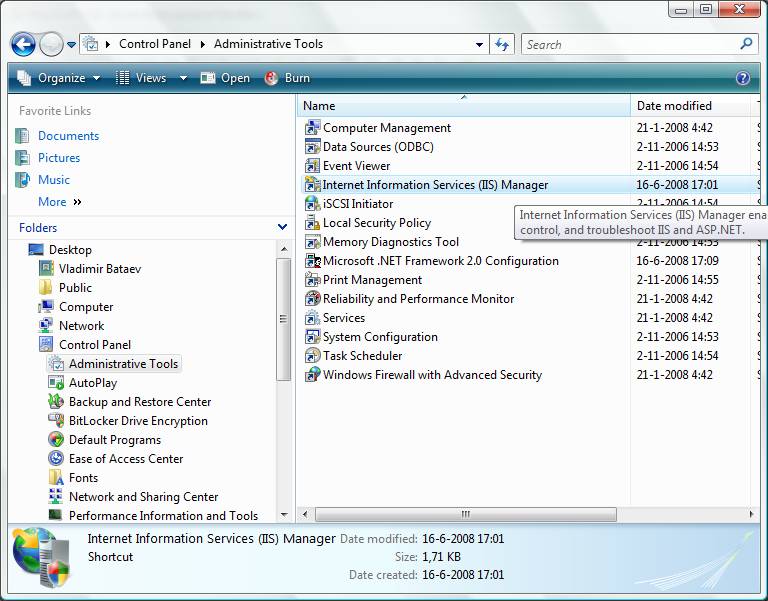
- Run the Internet Information Services (IIS) Manager (available in Administrative Tools section of the Windows Control Panel).
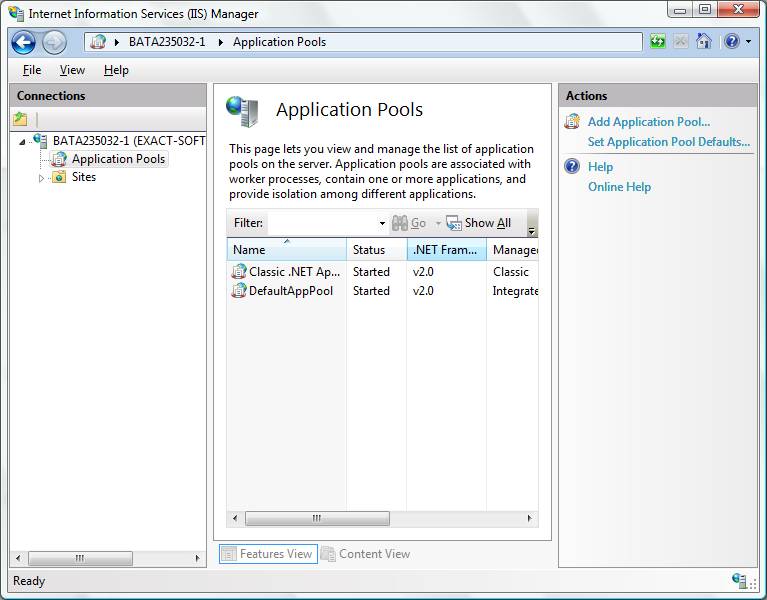
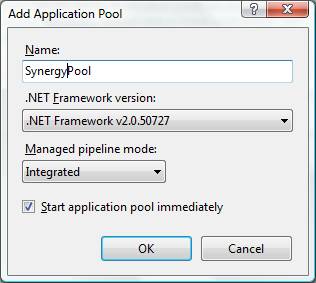
- Create a new application pool and give it a name (e.g.SynergyPool). The name of the application pool is not related to the name of the virtual directory that you used during the installation and should not be the same. To do that, unfold your server’s contents in the Connections pane on your left, select Application Pools icon and click on Add Application Pool in the Actions pane on your left. Make sure that there is a version of .NET Framework selected for your new pool before clicking OK).
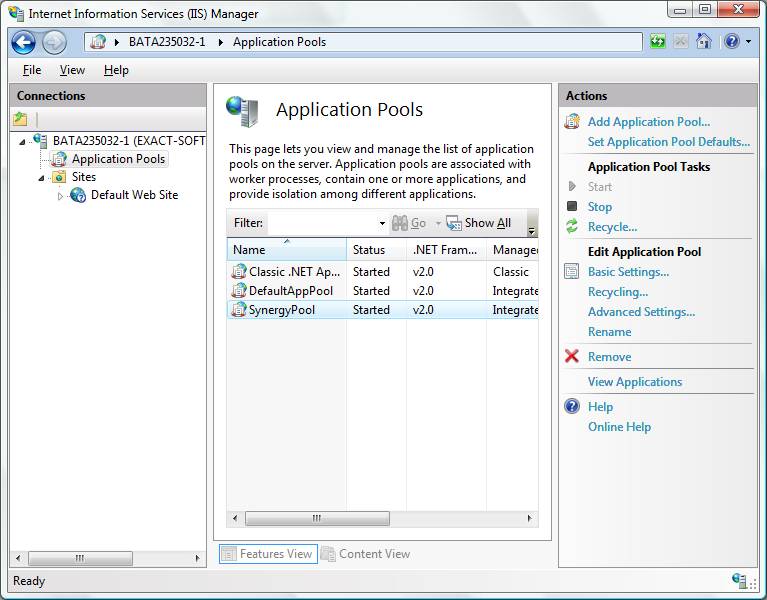
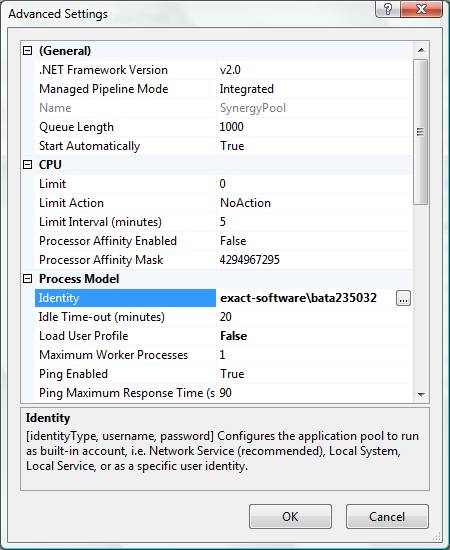
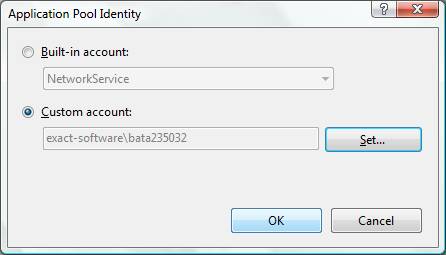
- Set your Windows username (e.g. exact-software\bata235032) as the identity for the application pool you created in the previous step. To do that make sure that your application pool is selected in the list, click on Advanced Settings in the Actions pane on your right, look up a line called Identity in the Process Model section and select a Custom account. Enter your username and password. Note that once your Windows username or password changes, you will need to update them in the identity settings as well.
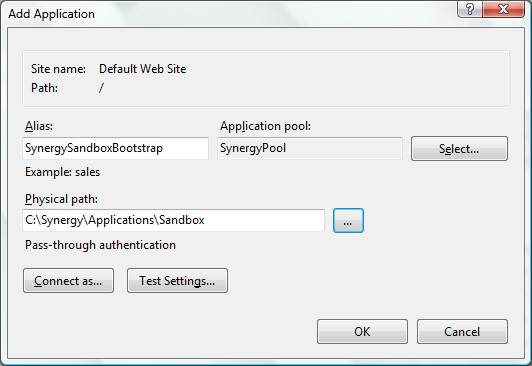
- Add a new application (or verify the configuration of an existing one, if it has been created for you by the Exact Internet Installer), so it has:
- the same name that you have used as the virtual directory during the download
- the application pool that you have just created, and
- the physical path pointing to the directory where you downloaded the Exact Synergy Enterprise files to.
To do that, you need to expand the Sites directory in the Connections pane on your left, right-click on the Default Web Site, select Add Application and fill out the corresponding fields. If the application is already created, then click on Basic Settings in the Actions pane at the right side of the window and check the settings.
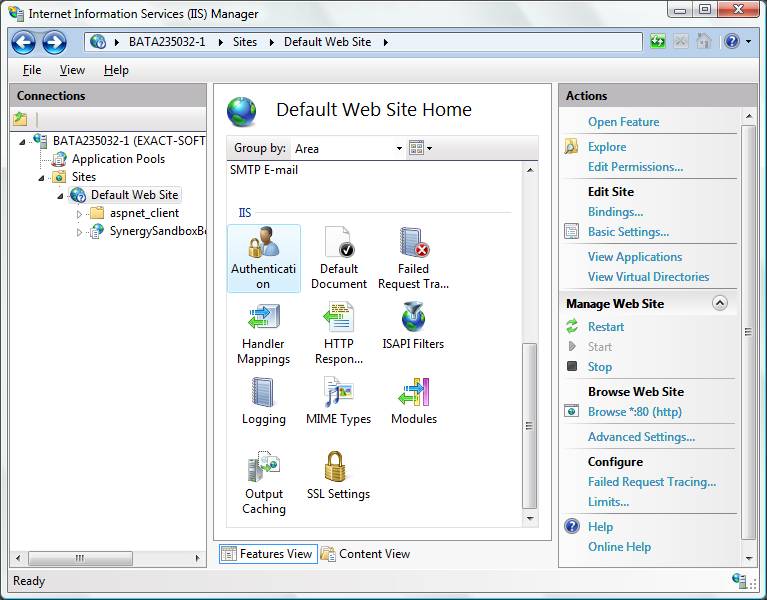
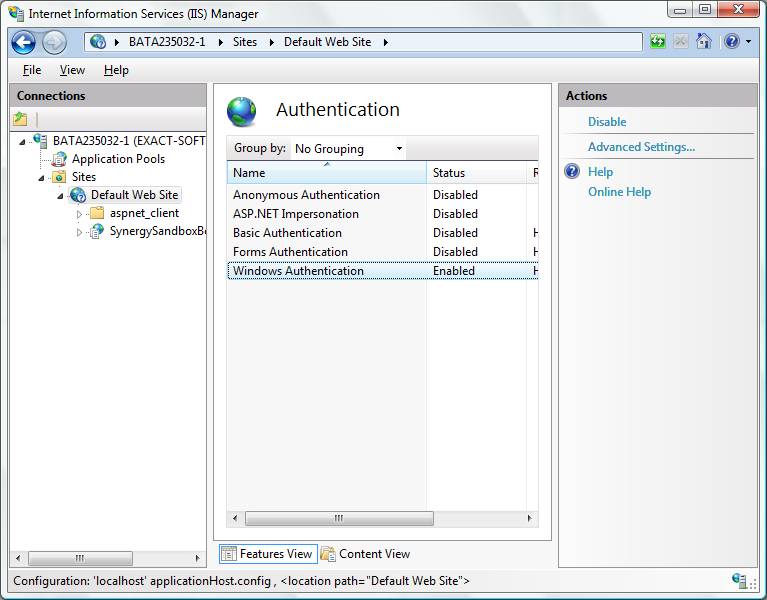
- Disable the anonymous authentication and enable the Windows authentication for the application you have added in the previous step. To do that, click on the Authentication icon in the Features View, right-click on Anonymous Authentication and select Disable, and then right-click on Windows Authentication and select Enable.
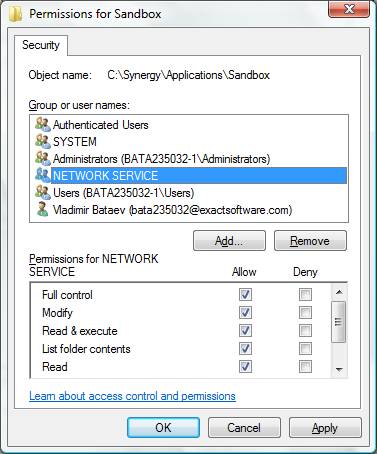
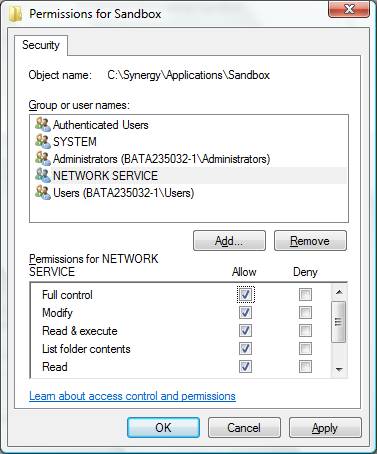
- Verify that the account with your username and the NETWORK SERVICE account have full control over the new application. To check that, right-click on the application name, select Edit permissions... and go to the Security tab. If the needed accounts are missing from the list, click Edit and then click Add to find them. Make sure that for each of these accounts, Full control is enabled in the Permissions list.
- Restart the application server (select the server name in the Connections pane on your left, and click Restart in the Actions pane on your right).
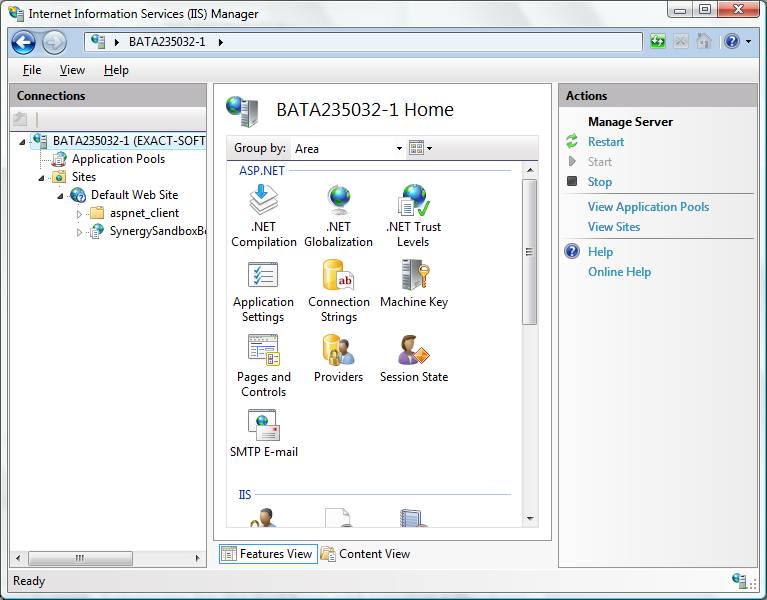
- Start Exact Synergy Enterprise. (Right-click on the application that you have created in the Connections pane, select Manage Applications and click Browse).
3. Running Exact Synergy Enterprise for the first time and creating/opening database
Since Exact Synergy Enterprise is now running for the first time, you will need to go through two more steps before you can start using it:
- Add a valid license file so Exact Synergy Enterprise can continue (refer to document 14.139.246, section 1.5 for the detailed instructions)
- Create a new database (and again, the detailed instructions are in the document 14.139.246, section 1.5).
Note that you do not need to modify your db.config file for your copy of Exact Synergy Enterprise to work. However if you wish to do so, you can find it in the following Windows Vista folder C:\Users\Public\Exact Synergy Enterprise.
4.Troubleshooting
This manual attempts to guide you through the installation process so that there are no configuration mistakes and everything works as expected. Nevertheless, given that the installation of Exact Synergy Enterprise on Windows Vista Enterprise is not supported officially, you may run into some difficulties.
- To know the origin of the problem, make sure that you receive detailed error messages as described in the document 17.734.705.
- If your error message tells you that you have run into an incompatibility problem with IIS 7 integrated pipeline, document 17.734.698 explains how to resolve it.
- If you attempt to open your old database and instead of doing that for you, ESE asks you for the license file again, try the following:
- Locate the db.config file in the folder C:\Users\Public\Exact Synergy Enterprise. If the file does not exist, create an empty text file in Notepad and save it as db.config.
- Edit the db.config file so it looks like this:
<?xml version="1.0" encoding="utf-8"?>
            <databases>
            <database virtualdirectory="ApplicationNameGoesHere">
            <database>DatabaseNameGoesHere</database>
            <server>YourComputerNameGoesHere</server>
            </database>
</databases> - Add the name of the application that you have used in paragraph 4 section 2.4 as your virtual directory name. Add the name of the database you wish to use with your new installation as your database name. And finally, add the name of your computer as the server name (it is the same name that you see in the Internet Information Services (IIS) Manager, available inAdministrative Tools section of the Windows Control Panel, in the Connections pane on your right in the top line. For example, BATA235032-1, as shown on the next screenshot).
Contact Synergy product management if you encounter a problem that you cannot resolve yourself.
5. Bibliography
This manual builds on the foundation set by other documents and to avoid duplication, this manual credits the relevant documents/parts. The list of these documents are as follows, and they are recommended as additional reading if you are interested:
- Exact Synergy Enterprise: Installation Manual (14.139.246) provides an overview of the system requirements and gives the step-by-step instructions on how to install Exact Synergy Enterprise in the IIS 6 environment.
- Issues of Exact e-Synergy.Net installation of Windows Vista and temporary workaround (15.246.969) .
- How to install Internet Information Services (IIS) 7.0 on Windows Vista (15.230.218) .
- MS SQL Server 2005 installation on Windows Vista (15.249.342) .
- Which IIS 7.0 components should be enabled to run Exact Synergy Enterprise? (15.448.052) - Explains the sufficient set of IIS components that are required to run Exact Synergy Enterprise.
- Db.config to be placed in Public users folder (16.816.526) - Elaborates on where the configuration file should reside in Windows Vista.
- Some tips to run Exact Synergy together with Exact Synergy Enterprise on the same machine (19.339.865) - Explains what other options need to be tweaked to run both Synergy products simultaneously.
| Main Category: |
Support Product Know How |
Document Type: |
Online manual |
| Category: |
On-line help files |
Security level: |
All - 0 |
| Sub category: |
Details |
Document ID: |
17.688.814 |
| Assortment: |
Exact Synergy Enterprise
|
Date: |
28-12-2009 |
| Release: |
|
Attachment: |
|
| Disclaimer |
|
|
|