Introduction
When the Office Add-in is installed, all settings needs to
be provided before the Office add in can be used. The settings for Microsoft
Word and Excel are the same. Microsoft Outlook has a different
settings screen, and will be explained separately.
Explanation of the Microsoft Word & Excel add in settings
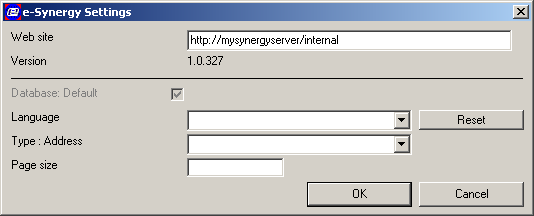
Website
The URL to the internal website should be entered here. To be sure that no
typing error will cause trouble, it can be safe to enter it the following way.
- Open the internal e-Synergy website in Internet
Explorer.
- Select the address out of the Internet Explorer address bar untill '/docs'.
- Press [Ctrl]+[C].
- Open the settings screen of the Office Add-in in Microsoft Word
or Excel.
- Place the cursor in the Website field.
- Press [Ctrl]+[V].
The URL will be something like this: http://mysynergyserver/internal
When a different e-Synergy environment needs to be accessed, the URL must be
changed.
Version
For information purposes, the version of the Office Add-in is presented here. The
batch number of e-Synergy and the version number of the Office Add-in might not
be the same.
Database: Default
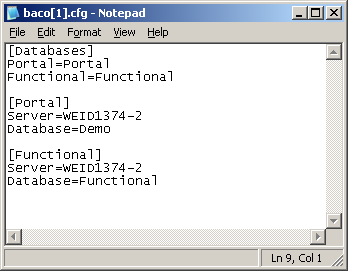
When this checkbox is checked, the Office Add-in assumes that the e-Synergy
database you want to access is the 'Portal' database. The portal section must
exist in the BACO.CFG file in your e-Synergy root folder.
When the checkbox is not checked, the database name
which should be used by the Office Add-in should be entered in the emerged field. 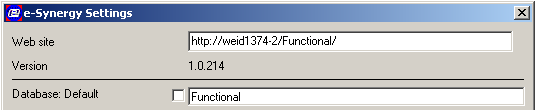
The name entered should exist in the BACO.CFG file and this
setting is case sensitive.
Language
The language setting sets the language of the Office Add-in menus. It does
not have any effect on the contents of the documents uploaded and/or downloaded into
e-Synergy.
Type: Address
With this field, it can be specified which address should be used when a mail merge
is created in Microsoft Word using the CRM e-Synergy data. By default, an account
in e-Synergy can have four different addresses;
- Visit;
- Invoice;
- Postal;
- Delivery.
Page size
This setting does not have any visual effects during the use of the
Office Add-in.
The number determines how much data is downloaded for every xml page.
For instance if the page size is small, and the user decides to "cancel"
the download, then the time between when they click "cancel" and when
it's actually cancelled is smaller than if the page size is large.
Explanation of the Microsoft Outlook Add-in settings
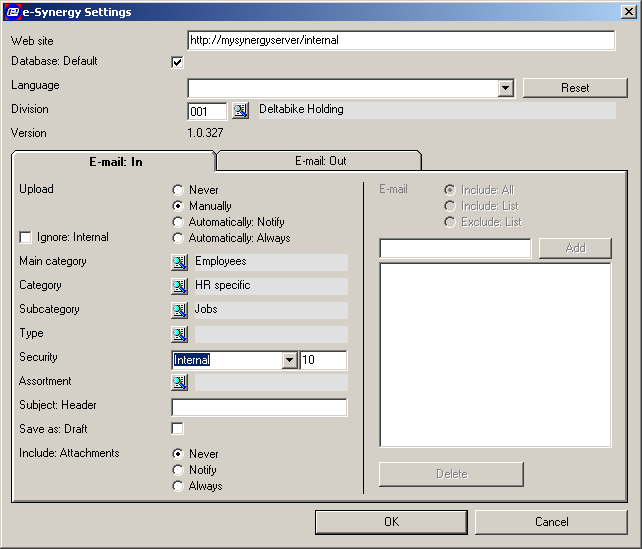
Only the specific Outlook Add-in fields will be explained.
Division
For information purposes, the division of the user is shown in the used e-Synergy
environment.
Upload
This setting determines how the Outlook Add-in is used:
- Never: Outlook Add-in disabled;
- Manually: when the user wants to save an e-mail in e-Synergy, the e-Synergy
pull down menu save options in Microsoft Outlook should be used;
- Automatically: Notify: a popup is displayed when a new e-mail arrives informing
the user that the new e-mail has been saved;
- Automatically: Always: all e-mails are saved in e-Synergy without any notification.
Ignore: Internal
Select this to prevent internal e-mails from being uploaded to Exact
e-Synergy. When this is enabled and Upload is set to either
Automatically: Notify or Automatically:
Always, a message notifying that the particular e-mail has been skipped
will appear.
Main category
The  button
presents a list of main categories in the linked e-Synergy environment. It is
mandatory to specify in which main category the e-mails are saved.
button
presents a list of main categories in the linked e-Synergy environment. It is
mandatory to specify in which main category the e-mails are saved.
Category
The button
presents a list of categories in the linked main category. It is mandatory to
specify in which category the e-mails are saved.
Sub-category
The
button presents a list of sub-categories in the linked category. It is mandatory
to specify in which sub-category the e-mails are saved.
Type
The button
gives a list
of document types available in the linked e-Synergy environment. When it is
set in Document
settings that a document type is mandatory for every document, it is
then mandatory for the document type to be specified here.
Security
The security level for the uploaded e-mails is set with this value. The security
level is not copied automatically from the selected sub-category.
Assortment
When it is specified in the main
category that an assortment is mandatory, it should then be entered
here. Otherwise the upload of e-mails to e-Synergy is not possible.
Subject: Header
When an e-mail is uploaded the subject-line of the e-mail will become the document
title.
In this field a prefix can be entered so that all document titles for
uploaded e-mails begins with the same prefix.
For example: Email in....
Save as: Draft
When this checkbox is checked, all uploaded e-mails are set to the
status 'Draft'. When a document is in the status 'Draft', only the creator/owner
of the document can read/edit the document.
When the checkbox is cleared, the documents are uploaded as normal
document and directly visible for every e-Synergy resource with the appropriate
security level. When the
sub-category specified
requires approval for newly uploaded documents, it will obtain the status
'Open'.
Include: Attachments
Attachments linked to an e-mail can be uploaded to e-Synergy. Three options
exist:
- Never: attachments will not be uploaded;
- Notify: a popup message will ask if the attachments
should be uploaded;
- Always: attachments will always be uploaded without any notification.
When an e-mail has more then one attachment, e-Synergy will store the other
attachments linked as reply documents. This is because only one attachment can
be linked to an e-Synergy document, but no limit exist to the amount of replies
to a document.
E-Mail
This setting becomes enabled when the upload is set to 'Automatically'. It
has three options:
- Include: All: all received e-mails are uploaded into
e-Synergy;
- Include: List: only the e-mails from the e-mail
adresses as entered in the list are uploaded into e-Synergy;
- Exclude: List: all received e-mails are uploaded to e-Synergy except for
the e-mail adresses as entered in the list.