Adding a Data grid section to a request
In the request type setting you have the possibility to use the setting Data grid. This document shows an example how you can use this.
In this example a request is created in which a list of contacts of the account is displayed. In this example it's assumed that you already have a request type definition that contains the Account field, in which you can link an account.
- Open the request type of the request in which you want to display the list of contacts.
- Open the Fields tab.
- Click Add (Section).
- At Type select the option Data grid.
- Click the Customize icon at the Browser field.
- In the new window at Browser, select a browser. e.g. Contact.
- The page also contains a section Query parameter in which you can link a Request field to the parameter. The available parameters depend on the browser you've selected. In this example for this browser you select Account. This to make sure that only the contacts of the selected account (linked at the Account field in the request) are displayed.
- In the Columns section you can define which data of the contacts you want to display. The available data depend on the browser you've selected.
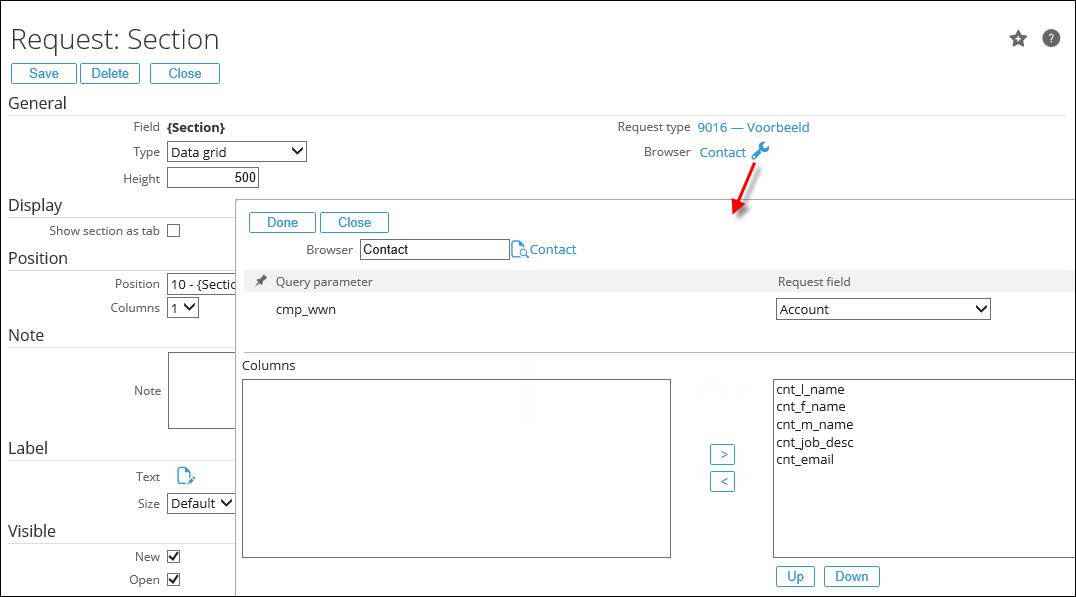
- After you've selected the browser and defined the query parameters and columns, click Done.
- Click Save to save the section.
- Click Save to save the request type.
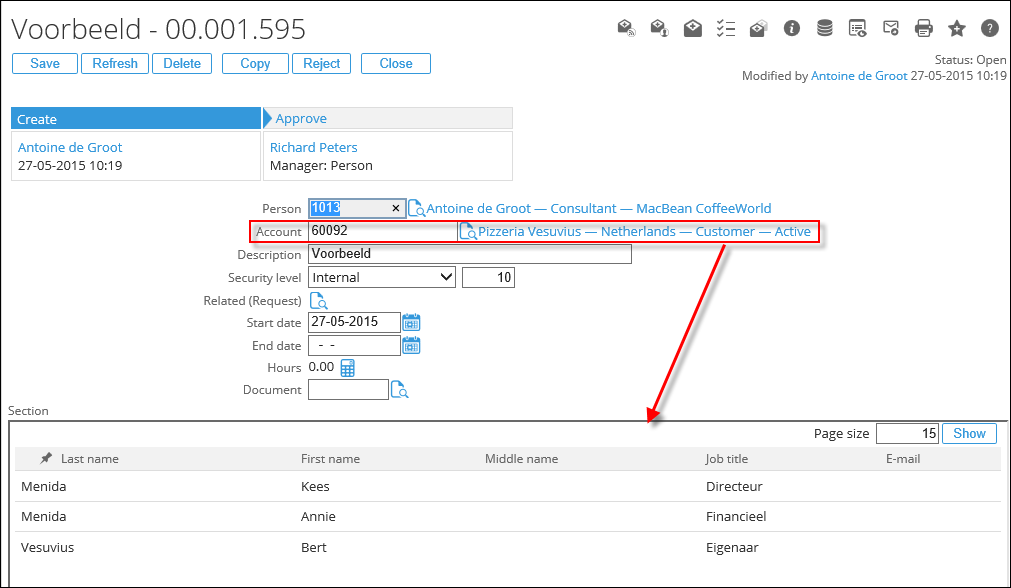
- When creating a new request of this type you can link an account at the Account field.
- After submitting the request the list of contacts of that account is displayed in the request:
More information
| Main Category: |
Support Product Know How |
Document Type: |
Support - On-line help |
| Category: |
On-line help files |
Security level: |
All - 0 |
| Sub category: |
Details |
Document ID: |
26.577.304 |
| Assortment: |
Exact Synergy Enterprise
|
Date: |
13-06-2017 |
| Release: |
252 |
Attachment: |
|
| Disclaimer |