Sales Manual - Reviewing, approving, printing and processing invoices
Reviewing, approving, printing and processing invoices
Introduction
This chapter describes the process of
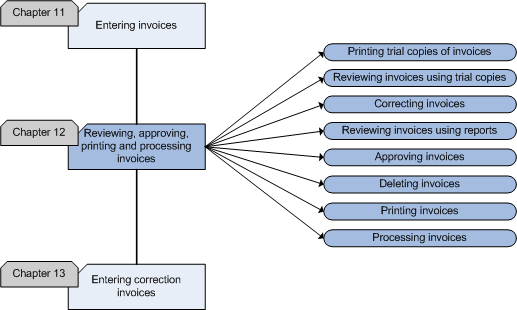
reviewing, approving, printing and processing invoices. The flowchart
illustrates the steps of the process and the accompanying functionality in
Exact Sales.
Invoices are often reviewed with trial
invoices as a standard step in the invoicing process. Invoices can also be
reviewed in the overviews. Another step in this process is approval of the
invoice. Approval is only necessary when you defined in your company
settings that you want to use approval. Before approval, the invoices must
be reviewed and if necessary changed. When approval is not required, you can
review and change the invoices before you make a final print. Incorrect or
canceled invoices can be deleted.
Flowchart
Printing trial copies of invoices
Before printing an invoice, you can print a trial copy of the invoice to
be used for different purposes, such as:
- To check the settings of the printer. This is important when you use
your printer for different purposes.
- To check the invoice data. The trial copy is often used to compare
the invoice with the order or packing slip and to check if the debtor
data, items, prices and amounts are correct.
- To use it as an extra copy to archive. This is useful when there are
questions about the invoice and it is proof of the action taken. Trial
copies of invoices can also be used to check the efforts of your
employees. You can indicate if you want the invoices to be processed
automatically. If you did not enable automatic processing, you can print
as many invoices as you want before you process them manually. When you
have enabled automatic processing, you can print the same invoices from
the invoice history. See
[Printing invoices].
The printing of a trial copy of an invoice does not affect the status of
the invoice. Trial copies of invoices will be printed for the person or department
that is responsible for the approval of the invoice. When the trial copies
are correct, you can print the final copies of the invoices in [Sales:
Processes, Sales invoices, Sales invoice printing]. The approval of invoices (if
enabled) has to take place before the printing of the invoices. Before
that, you can assign invoice layouts in [Sales: File, Company settings, Sales settings]
in the 'Invoice' tab. The invoice layouts can be used to print trial
and final copies of invoices.
Reviewing invoices using trial copies
The following data can be checked using the trial invoices (and packing
slips):
- The NAC data (Name, Address, City) of your company
- The NAC data of the invoice debtor and the collect debtor.
- Order date
- Delivery date
- Invoice references
- Items
- Item descriptions
- Quantities
- Prices
- Amounts
- Discounts
- Extra charges (like order and freight costs)
- Payment conditions
- Delivery method
The price and the quantity of the goods can be checked with the packing
slip. The invoices should contain all goods to be delivered. The check
consists of comparing the trial invoice and the packing slip. It is
essential that the items, prices (price agreements) and debtor data are
correct, to ensure the collection of the debt in the future. When the data
of the invoice debtor is not correct, this can cause a delay and the
relationship with your debtor may be spoiled. Incorrect invoices are bad for
your business image. Entering and dispatching new or additional invoices
will waste your time.
It is important to separate the entry and the checking of the invoices
and if possible, let it be done by different people. Because it is difficult
for a person to recognize his own mistakes, and even fraud can be prevented
using this method.
Most important means for precautionary checking:
- The use of pre-invoicing.
- The use of sequence numbers in order forms.
- The determination of tasks and rights for every employee.
- Separation of tasks of the sales, warehouse and dispatch personnel.
Correcting invoices
When you discover mistakes in an invoice, such as the description, the
quantity or the amount of the invoice, you should correct them before you
send it to your customer. You can only change the details of the invoice or
add extra information in [Sales:
Processes, Sales invoices, Sales invoice entry] if the invoice
has not been printed.
If the invoice has been printed, you can correct the mistakes of an
invoice by creating an additional invoice or a credit invoice. See
[Entering correction invoices].
Reviewing invoices using reports
Besides checking invoices with trial copies and packing slips, you can
also check invoices with reports in [Sales:
Reports, Sales invoices]. This has several advantages:
- You can group and compress the invoice data - You have one complete
report and do not have to compare different prints because all the
necessary data will be displayed in one report.
- You can retrieve the data from different angles - Invoice data can
be selected in different reports by debtor, order number, and more to
get a complete picture of, for instance, the purchasing behavior of your
customers.
- Specific information on one or more debtors is quickly available.
- You do not have to print trial prints or have packing slips at hand.
When the invoices are entered correctly, you can print the invoices or an
extra copy for the archive when the incorrect invoices have been corrected.
Approving invoices
Before you print your invoices on a final basis, we advise you to check
the data in detail. To prevent invoices being sent before you checked them,
you can approve them. Any mistakes in items, quantities and amounts, will
make the invoice look untidy and these mistakes have to be prevented.
Payment conditions have to be mentioned on the invoice, to avoid
misunderstandings. One person or department should decide to approve an
invoice or not. Most of the time this will be another person/department than
the one that entered the invoice, depending on the number of employees. The
person or department that is responsible for the collection of the
outstanding items depends on correct invoices, because incorrect invoices
might not be collectible and will cost them time and money.
To be able to use approval of sales invoices, you should indicate in
your settings by selecting the 'Sales invoice: Approve' check box on the
'Invoice' tab in [Sales: File, Company settings, Sales settings].
This functionality is only effective when you block or restrict the
access, in order to let only the responsible person work with this function.
In this way you can be sure that only the right person can approve the
invoices. You can grant rights in [System:
Security, Authorization, Menu authorization, Maintenance].
After an invoice has been approved, the invoice can be printed finally
and processed. You can approve invoices in [Sales:
Management, Sales invoice approval].
Deleting invoices
In some cases it might be necessary to delete an invoice. This happens if
an invoice has been canceled, an invoice contains so many mistakes that the
best solution is to delete the invoice and enter a new one or an invoice has
been entered in the system twice.
If you make a small mistake in an invoice, you can correct this easily.
You can only delete invoices when the invoices have not been printed yet.
The person that is responsible for checking and approving invoices, should
also be responsible for deleting the invoices. Deleted invoices are are
deleted from the system and cannot be retrieved. You can delete a sales
invoice in [Sales: Management,
Delete sales invoices].
Individual lines of an invoice can be deleted in [Sales:
Processes, Sales invoices, Sales invoice entry]. When you select
a line, you can delete it by clicking the 'Delete' button. When you deleted
all the lines of an invoice, the invoice will automatically be deleted.
Printing invoices
Before you print the invoices, you are advised to check
whether the printer settings are correct and if the data can be printed correctly.
Trial copies of invoices can be printed and used to check the data and as a copy
for archiving.
Checking the invoices before printing them in the final form will save you a
lot of time, money and effort. In addition, it will not take much time than to correct a printed
invoice. In that case, you will have to enter a correction invoice. When the
trial copies of the invoices are correct and the approval has taken place, then you can
print the invoices in the final form.
You can use grouped invoices for frequent sales in a certain period.
Instead of sending an invoice for every time you sell something, you just
send your debtor one invoice for all the goods. The grouping of invoices can
be based on:
- Orders - partial deliveries of one order.
- Periods - once a week, month, or quarter.
- Projects - one invoice per project.
- Customers
To print grouped invoices, you have to select the 'Grouped invoice' or 'Ask
for grouping' check boxes in [Sales: File, Company settings, Sales settings].
When you enable 'Ask for grouping', every time you are going to print an
invoice, you will be asked whether you want to group the invoices.
Another method for grouping invoices cyclical invoices. Cyclical
invoicing is a good means to spread work load because the grouped invoices
are sent extending over a month instead of at the end of the month. Debtors
will be divided in groups. For example debtors whose name start with A or B
will be invoiced on the first of the month and debtors whose name start with
D or E will be invoiced on the second of the month. With this, debtors will
still receive one invoice per month.
The invoice will show all items and services provided, the quantities and
the matching prices. It is essential that the quantities and the amounts are
correct to prevent extra work for the person/department that has to collect
the outstanding items. The invoices are the basis of the business revenue.
You can print the trial and final copies of the invoices in [Sales:
Processes, Sales invoices,
Sales invoice printing]. Invoices can be printed according to different
criteria. After printing, you will be asked if the invoices are printed
correctly. If you indicate that the printing was not successful, for
example, because the paper was jammed in the printer, you can immediately
print the invoice again.
You can print grouped invoices for one debtor. Grouped invoices can be
printed in [Sales:
Processes, Sales invoices, Sales invoice printing]. If
you want to group all invoice of a debtor, then you have to enable 'Grouped
invoice' on the 'Invoice' tab in [Sales: File, Company settings, Sales settings].
When you want to print an invoice for every invoice number, do not enable
this option. When you want to decide for every selection whether you want to
print grouped invoices, you choose 'Ask for grouping'. You will be asked
before printing if you want to group the invoices. Before you can group
invoices you have to make sure that the following data is the same for all
invoices you want to group:
- Debtor
- Currency code
- Invoice discount
- Payment condition
The freight and order costs from the individual invoices will be added up
and shown as one amount on the grouped invoice. No invoice number may be
assigned to the invoices that have to be included in the grouped invoice.
Select {Only when needed} in the 'Reserve invoice number' field on the 'Invoice' tab in [Sales:
File, Company settings, Sales settings]. An invoice number will not be assigned until
the final printing of the invoice. Invoices with a different invoice code or
representative will be printed separately.
When you are invoicing cyclically in Exact Sales, you can link a
selection code to every debtor. The invoices can be printed by selection
code. You can link the invoices to an invoice code and print by invoice
code.
You have to take the following points into account before you print the
invoices:
- In [Sales:
File, Company settings, Sales settings] on the 'Invoice'
tab, you can define if you want to approve your invoice before printing
by selecting the 'Sales invoice: Approve' check box. When you enable this setting, you
have to approve the invoices in [Sales: Management, Sales invoice approval]
before printing.
- You can create invoice layouts in [System: Application,
Form layouts]. The invoice
layouts can be used for invoices as well as for trial copies of the invoices.
Printing invoices work the same way as printing trial copies of invoices. There only are a few
differences:
- Do not select the 'Trial print' check box.
- You should enter the fields 'Financial year' and 'Period' in the
print screen (only if you have set a fixed year/period in the sales
settings on the 'Journalizing' tab).
Processing invoices
Sometimes it may be better to print all invoices and process them
afterwards. The processing can take a lot of time. If you want to process
your invoices manually after you printed them, you can indicate this by not
selecting the 'Automatic processing after printing' check box on the 'Invoice'
tab in [Sales:
File, Company settings, Sales settings].
When you process an invoice, the following will happen:
- The invoice data will be stored in the history. You can make copies
of invoices from this history.
- The revenue statistics will be updated according to the processed
data. You can look at these statistics in the overviews and you can
print them.
- Journal entries will be created in Exact Finance.
- When the sales invoice is linked to a project an external entry will
be created in Exact Project.
You can select invoices that you want to process in [Sales: Processes, Sales
invoices, Sales invoice processing]. Processing of invoices is done in the similar way as printing invoices.
Sales Manual > Contents > Reviewing,
approving, printing and processing invoices
| Main Category: |
Support Product Know How |
Document Type: |
Support - On-line help |
| Category: |
On-line help files |
Security level: |
All - 0 |
| Sub category: |
General |
Document ID: |
18.063.358 |
| Assortment: |
Exact Financials
|
Date: |
11-11-2008 |
| Release: |
|
Attachment: |
|
| Disclaimer |