Sales Manual - Entering invoices
Entering invoices
Introduction
This chapter describes the process of
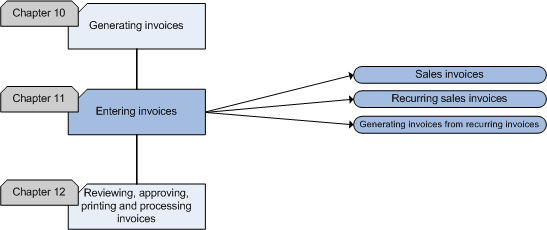
entering invoices manually. The flowchart illustrates the steps in the
process and the matching functionality in Exact Financials. This chapter
also describes the steps for entering invoices in foreign currencies.
Flowchart
Sales invoices
The proposal phase, which contains the price negotiation will result in a
contract and an order. The invoice is the final result of the sales process
and leads to the company revenue. When a customer is not registered as a
debtor, you need to record the data before you enter the invoice.
Businesses with a fixed product range often work with standard items.
However, when a business sells a product or perform services that varies all
the time and for which no fixed item description and data are available,
this will require another method of invoicing.
In Exact Sales, you can create invoices in [Sales:
Processes, Sales invoices, Sales invoice entry]. An invoice consists of an invoice header and invoice
lines. The invoice header contains the general debtor data. The invoice
lines contain the items and costs that have to be invoiced. The fields and
the ability to change them depends on your settings in [Sales:
File, Company settings, Sales settings].
The invoicing method that will be used depends on the product range:
| Standard range of normal items
| A company with a fixed product range will use the
standard items entered in [Sales:
Master data, Maintenance, Items, Items].
|
| Standard range of normal services
| Text items are standard items to which you can link
extra text in [Sales:
Master data, Maintenance, Items, Items]. You
should use text items if you offer a standard service.
Text items are treated as normal items - they can be
called up with a search code and kept in stock.
|
| Incidental and/or varying items
| If a company sells products that vary, it will
often use text items created in [Sales:
Master data, Maintenance, Items, Items]
(which you can use more than once) or text lines
entered in [Sales: Processes,
Sales orders, Sales order entry] (for
incidental items). These are particularly suitable
for intangible matters, like hourly wages and
consultancy fees.
|
| Incidental and/or varying services
| Companies that offer varying or incidental
services use text lines entered in [Sales: Processes,
Sales orders, Sales order entry].
They are unique and only apply to the sales
order in which they are entered. Text lines are
entered in the 'Text lines' column in [Sales: Processes,
Sales orders, Sales order entry]. No
stock is kept for these services because they
are not entered as master data.
|
Text lines
The length of the text lines has to be defined in the
layout. The length of the text lines can be defined in [Sales:
File, Company settings, Sales settings]. Text lines
can be used for two purposes:
- To invoice items or services that are not a standard
part of the product range. You can add an explanation on
the costs or services.
- To enter extra text on the invoice. Extra text can
be used to explain item data of the previous text line
or to enter a message for your debtor, for example to
wish him a Merry Christmas.
Before you enter an invoice, you should check whether the following data
are registered correctly:
Invoice debtor
An invoice debtor is the debtor that will
be invoiced and eventually settle the payment for the outstanding items. This debtor does not have to be the
same person or company that receives the goods or the person or company that
placed the order. Especially in companies with several branches and in
businesses that work with agents, it is very important to separate debtor,
delivery debtor and invoice debtor.
Delivery debtor
The delivery debtor is the debtor that will
receive the goods. It is important that the data of the delivery debtor are
recorded accurately in order to deliver the goods at the correct address.
Credit line
The credit line is the maximum outstanding
amount that a debtor is allowed to have in your company. It is important to
arrange clear agreements with regard to this sale condition for your debtor
management. The credit line is a useful tool to determine whether your
debtor can place an order and to determine the maximum invoice amount.
Inform your debtors of their credit lines beforehand as well as when
the debtors are going to reach their limits.
Payment conditions
The payment conditions are an important part of the payment agreements
because they can influence the payment habit of the debtor. Enter the
payment conditions you agreed on with your debtor. There are two kinds of
payment conditions:
- Payment discount - The debtor receive a discount if the payment is
settled within an agreed period.
- Payment charge - A payment charge is a penalty for paying too late
that is included in the invoice amount. When a debtor pays on time, the
debtor can subtract the payment charge off the invoice amount.
You should link payment conditions to a debtor, when you create the
debtor. The conditions should be checked before or while entering the
invoice, to prevent an invoice being sent with the wrong payment charge or
discount.
Price agreements
Price negotiations take place in the
negotiation phase. Once an agreement has been made an order is placed and
the sale is concluded. Existing price/discount agreements have to be
registered in the system per debtor in order to use the correct discounts.
The agreements are not only valid for this sale but also for future sales.
The agreed prices are often recorded in price lists.
Price lists are used
for quantity discounts or for groups of debtors. When you enter an invoice,
you should check whether the correct price list is linked to a debtor to
prevent invoices with the wrong discount or with no discount at all from
being sent. Enter the number of an item or an item group and the
accompanying discount type (amount, percentage or new price) in the menu
paths: [Sales:
Master data, Maintenance, Price lists, Price list codes],
[Sales:
Master data, Maintenance, Price lists, Price lists per item group] and
[Sales:
Master data, Maintenance, Price lists, Price lists per item]. A
debtor can only be linked to one price list, one price list can be linked to
several debtors. The linking of a price list to a debtor provides the
automatic use of the correct discount. The discount is calculated in the
invoice lines. If you want to use different discounts, you can use a
different price list in every invoice line.
Some companies use one price list for
one particular debtor. If you want to use more than one price list for a
debtor and you do not want to change the price list for every invoice
line, you can make a price list in which all relevant discounts for a
debtor are recorded. If you record all this data in one list, no
discounts can be overlooked and it is not necessary to change the price
list.
You can also enter discounts in the following ways:
- Link a fixed discount percentage to a debtor by entering the amount
in the 'Discount percentage' field on the 'Payment' tab in [Finance:
Debtors, Master data, Maintenance]. The linked discount percentage
will automatically be used in every invoice line you enter for a debtor.
- Enter a discount percentage per invoice line - This discount only
applies to the invoice line involved.
- Enter the discount in the closing window - The discount applies to
the entire invoice amount.
Currency
If you have foreign customers, you have the
possibility to enter invoices in foreign currencies. Before you enter an
order, you should check whether the currency is registered in your system
and whether the current exchange rate is correct. In your debtor master
data, you will have to link a default currency to a debtor. If you want to
be able to enter orders for a particular debtor in a currency other than the
default currency, you need to select the 'Change debtor data' check box on
the 'General' tab in [Sales:
File,
Company settings, Sales settings].
Fixed debtor data
The debtor data such as the name, address and other fixed data have to be
reviewed and updated from time to time.
It would be risky to assume that the data is entered correctly or that it
never changes. If you
want to be able to change the debtor data, you need to select the
'Change debtor data' check box on the 'General' tab in [Sales:
File, Company settings, Sales settings]. The
advantages of recording fixed debtor data are:
- It will save you time as well as effort.
- No data will be overlooked when entering an order (because all data
is already available).
Stock position
Several reports in Exact Sales are available
to allow you to
see what you have in stock.
VAT data
The VAT data needs to be checked whenever you
enter a debtor or an invoice. A VAT code is often linked to a debtor or an
item to prevent that an incorrect VAT percentage will be assigned to the
goods.
Example
Belgian customers do not pay any VAT when they
purchase goods in The Netherlands. Belgian debtors need to be recorded with
a VAT of 0%.
In certain cases the entity who delivers the goods or services is not the
entity who transfers the VAT, but this is done by the entity that purchases
the goods or services. The VAT is charged to the buyer. You are able to
record this in the data of the debtors involved.
Frequent checking of data mentioned above makes your debtor maintenance a
lot easier. This simplifies the collection of outstanding items, because you
do not have to look for the appropriate data and invoice conditions.
In Exact Financials, you can link VAT codes to debtors in [Finance:
Debtors, Master data, Maintenance] and to
items in [Sales:
Master data, Maintenance, Items, Items] after
creating them in [Finance:
Ledger, VAT, Master data, Maintenance, VAT codes].
If you use 'VAT charged', you have to select the 'VAT charged' check box
on the 'General' tab in [Finance:
Ledger, VAT, Master data, Maintenance, VAT codes]. In order to
charge the VAT to the buyer, you have to link the appropriate VAT link to
the debtor or to the item.
An invoice entered is not immediately processed and completed. The
details of the invoices that have not been printed in the final form can
still be modified. After entry, the invoice will be transferred to the
person/department that is responsible for checking and approving the
invoice. In most cases this will not be the person/department that entered
the invoice. You can use trial copies of the invoices to check invoices.
After approval, the invoice will be printed and it cannot be changed
anymore.
Recurring sales invoices
Recurring invoices serve as templates for sales invoices that are
frequently created and processed on a weekly, monthly, quarterly or yearly
basis, such as insurance premiums and loan repayment. You can create
recurring sales invoices in [Sales:
Processes, Recurring sales invoices, Entry]. You can create recurring invoices to save time from
creating manual entries of similar invoices.
Generating invoices from recurring invoices
Recurring sales invoices that have been entered into the system can be
generated as sales invoices in [Sales:
Processes, Recurring sales invoices, Generate sales invoices]. These
invoices can then be printed, process and then sent to the customers. See
[Printing invoices] and
[Processing invoices].
Sales Manual > Contents > Entering
invoices
| Main Category: |
Support Product Know How |
Document Type: |
Support - On-line help |
| Category: |
On-line help files |
Security level: |
All - 0 |
| Sub category: |
General |
Document ID: |
18.055.657 |
| Assortment: |
Exact Financials
|
Date: |
11-11-2008 |
| Release: |
|
Attachment: |
|
| Disclaimer |