E-WMS - changes to E-WMS web server from release 411
WMS documentation
This document describes details of the changes in release 411, related to the
WMS web server, and the action to take when updating.
General
In product update 411, following changed for the E-WMS ASP web server:
- Installation and presence of Exact Globe Next
(EGN) on the web server
is no longer required.
Exact Globe Next components were used in earlier releases for following
purposes:
- terming: showing the texts on the scanner in your own language, as
in Exact Globe Next.
> E-WMS now includes the required terming targets in the ASP installation
ZIP file, these are placed in the LNG folder of the WMS ASP installation
folder.
- license check: validating and applying the EGN and
E-WMS license
> E-WMS no longer uses EGN components for license validation
- version check: validate whether the WMS ASP installation has the
correct software version, by compare the file versions of two DLL files
(one from the EGN installation, one from E-WMS ASP).
> The software version check is now done through the database. This
means after an update of Exact Globe Next, the database first has to be
opened in Globe and a WMS Control Center has to be started. Any
E-WMS Control Center will update the version in the database after EGN
has been updated. See below for more
details.
- The WMS ASP process now uses .Net Framework 4.5
- The WMS ASP process can now run as 64bit
IIS process (32bit is also still possible)
- The WMS ASP process now uses the 'integrated pipeline mode'
instead of the 'classic pipeline mode'
- The installation of "Visual C++ Redistributable Packages for Visual
Studio 2013" is required.
- The SQL user defined in the file Connections.config, used by E-WMS ASP
to communicate with the database, needs to have all rights on the databases.
The SQL user has to be member of the SQL server role 'sysadmin' or else 'db_owner'
of the specific database.
Steps to take when updating to 411 or higher
When updating from release 410 or earlier, to release 411 or higher, you need to
perform following actions (once only) on the E-WMS web server.
- Install "Visual
C++ Redistributable Packages for Visual Studio 2013"
(vcredist_x64.exe).
When not
installed, an
error will show when logging in on a scanner.
Next, change the IIS configuration options:
- Start IIS management through Start/Run/INETMGR
or through the server management console
- Expand the tree list to Sites/Default Web
Site
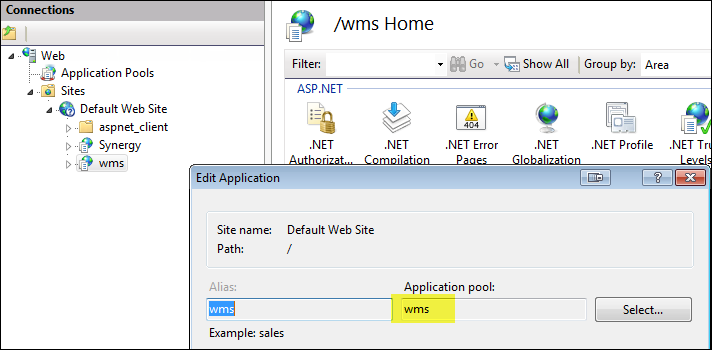
- Click on the 'wms'
website (or your website
name), and in the far right panel on 'Basic settings'
- Check the name of the Application pool
configured for the WMS web site, in this case 'wms':
Close this screen.
- Now click on 'Application pools' in the management tree (just below the
server name), then right-click on the WMS application pool and choose 'Basic
settings':
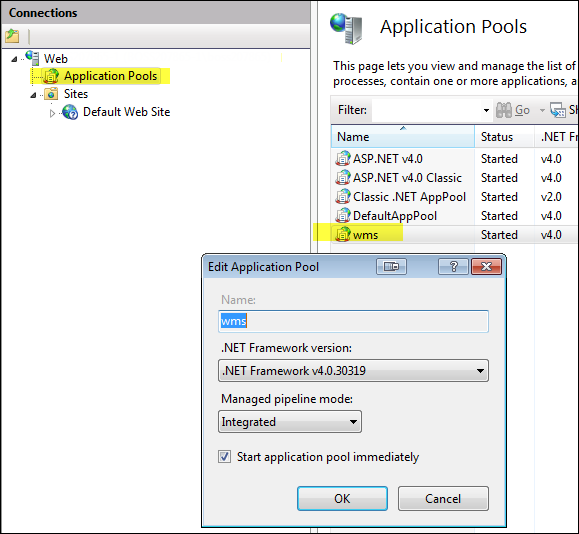
Change '.NET Framework version' to version
v4.0.xxxx.
If you do not see this version, then Microsoft .NET Framework 4.5 first
has to be
installed on the server.
- In the same screen, change 'Managed pipeline mode' to 'Integrated'.
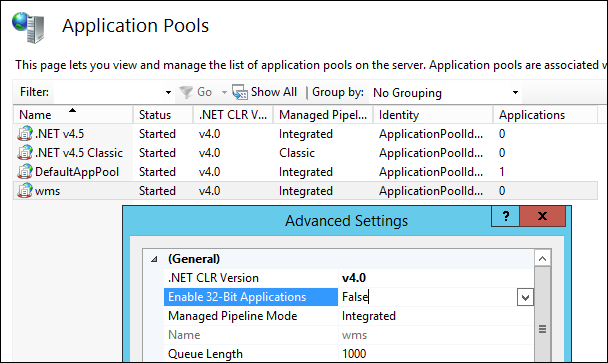
- Close the basic settings screen and right-click again on the WMS
application pool, now choose Advanced settings.
Change the setting 'Enable 32-Bit Applications'
to False and press OK.
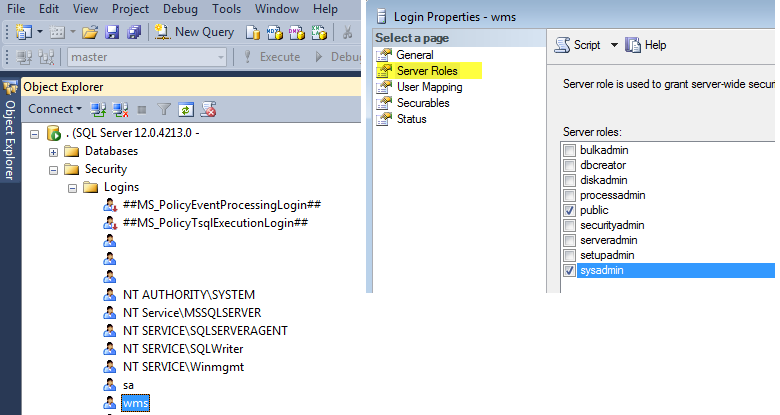
- SQL-server: Start the Microsoft SQL-Server
Management Studio, connect to the
SQL-server (if not already connected), and expand the Security/Logins tree.
Right-click on the SQL-user you configured in the ASP file
connections.config and select Properties.
You can grant the required access right by making the user member of the
Sysadmin role, or by making member of
the db_owner (database owner) group for
the specific database:
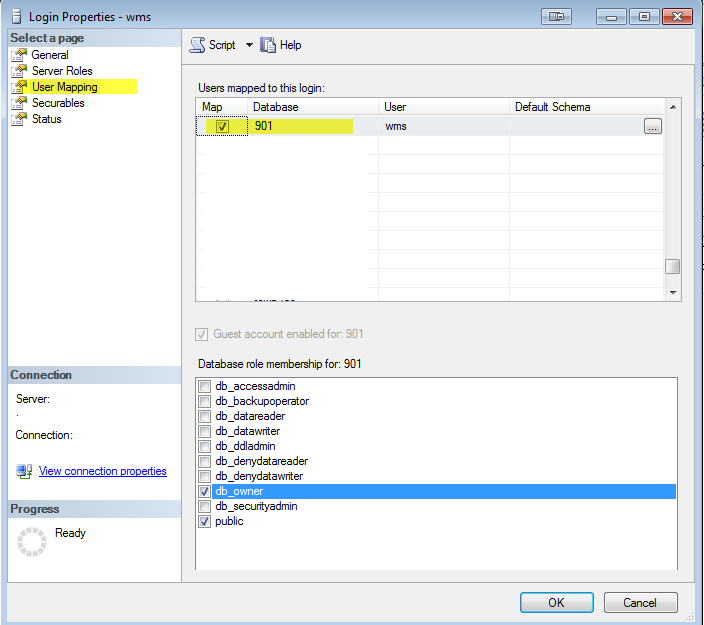
Please note that you can
encrypt the password for this SQL user, in file connections.config.
The steps above only need to performed once, after updating to release 411 or
higher.
The next chapter, 'Software version check', describes what needs to
be performed after every
Exact Globe Next update from now on.
Software version check: first start WMS control center after updating
When starting a WMS session (logging in on a scanner), E-WMS needs to verify
whether the 'business logic' of the currently installed WMS ASP version is the
same as the business logic in the WMS software used within Exact Globe Next.
In earlier releases, the file versions of two DLL files on the web server (one present in the
EGN BIN folder, and one in the ASP BIN folder) were compared for that purpose.
When the file versions do not match, it usually means that EGN was updated but
WMS ASP not yet, and you would see the error message 'Your WMS ASP
version is outdated. Please update your E-WMS ASP IIS files to match your Exact
Globe Next version'.
Because the presence of EGN on the web server is no longer required and the
DLL file in the EGN BIN folder can no longer be used for comparison, the EGN
database is now used to verify the WMS business logic version.
This means
that after opening a database in an updated EGN version, you first have to start
a WMS Control Center, to update the WMS business logic version in the database
(this is done automatically and silently). Only after you have started a control
center, you will be able to start WMS scanner sessions without the version
error.
Points of attention
Since EGN is no longer required on the web server for E-WMS ASP purposes, it
could be prudent to uninstall it - to prevent mistakes, or prevent
confusion about the presence of an outdated EGN installation. Alternately,
you can keep EGN installed and updated for other purposes.
In earlier releases you could update EGN on the web server, after which
the updated WMS ASP files where available in a ZIP file in a subfolder. This
ZIP file needs to be copied from now on from another PC, where EGN was
updated.
Related documents
| Main Category: |
Support Product Know How |
Document Type: |
Support - On-line help |
| Category: |
On-line help files |
Security level: |
All - 0 |
| Sub category: |
Details |
Document ID: |
26.748.575 |
| Assortment: |
E-WMS
|
Date: |
08-01-2016 |
| Release: |
|
Attachment: |
|
| Disclaimer |