How-to: Setting up a response after receiving a feedback
Introduction
It is always beneficial for a company to have a personal touch in its customer relationship management (CRM) process. In today’s world where digital communication is widely used, a personalized response may be advantageous to maintain the human factor and for us to be in touch with our customers on a personal level.
In Exact Synergy Enterprise, you can direct a personalized response message to be sent automatically upon receiving feedback via the CRMQuestionnaire form. For example, when a customer sends a question, the system is able to immediately respond with a polite message saying that the question will be tended to soon.
Description
To send a personalized response message automatically upon receiving feedback via the CRMQuestionnaire form, you must first create the response document as a mail merge layout. Next, you will need to specify the use of this response document. The Professional license role is required to create a mail merge layout. However, you can only modify a mail merge layout that you have created or where you have ownership. To define account settings, function right 222 – Maintain CRM settings is required. Users with the Administrator or Customer manager role have this function right.
This document describes the following topics:
Return to top
Creating response messages
To create a personalized response message, you must first create the message with the CRM tags as reference to the original message at Documents à Setup à Layouts à Mail merge. When the response message is generated using this mail merge layout, the system inserts the relevant information according to the special tags. On the Layouts: Mail merge page, click New, and then define the fields. Under the mail merge layout editor section, type the response message and insert the CRM tags, for example [BACO_CRM ContactPerson.FullName] to reference the name of the contact person. Click Help to display the list of CRM tags. For more information on creating mail merge layouts, see Creating and modifying mail merge layouts.
The following is an example of a mail merge layout for a response message:
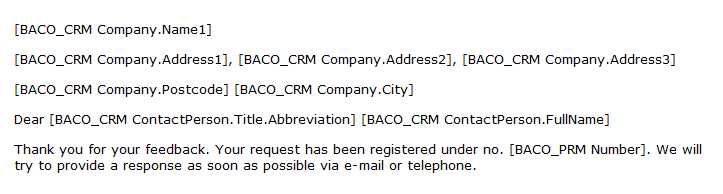
The information filled in by the customer in the CRMQuestionnaire form will be used to replace the tags in the recommended mail merge layout. It is advisable to create a document type specifically to handle the automated response. You can select the document type at Type when saving the mail merge layout. For more information, see Creating and modifying document types.
Note: You can also create different layouts for different languages. If a customer specifies the language when filling in the CRMQuestionnaire form, the relevant response based on the corresponding layout language will be sent. You need to define a language when creating the mail merge layout. If this is not done, the particular layout will not be used since it will not match the language defined in the CRMQuestionnaire form. If no language is defined, the default English layout will be used. You should also define a low security level for the layout so that users will be able to see the response sent.
Return to top
Customizing CRM settings for the response messages
To configure the response message for use when a customer sends a feedback, go to Customers à Setup à Other à Settings, and then click Edit. Select the document type, where the mail merge layout is linked to, at Document: Type under the Customer portal: Request section. For more information, see Defining account settings.
Return to top
Related documents
| Main Category: |
Support Product Know How |
Document Type: |
Online help main |
| Category: |
On-line help files |
Security level: |
All - 0 |
| Sub category: |
General |
Document ID: |
16.364.952 |
| Assortment: |
Exact Synergy Enterprise
|
Date: |
05-12-2012 |
| Release: |
390 |
Attachment: |
|
| Disclaimer |