Introduction
After setting up the Lines metadata definition, your page will be
able to display the lines grid. However, if you need extra information during the
processing of the lines data, you can use the configuration UI to fill in those
information.
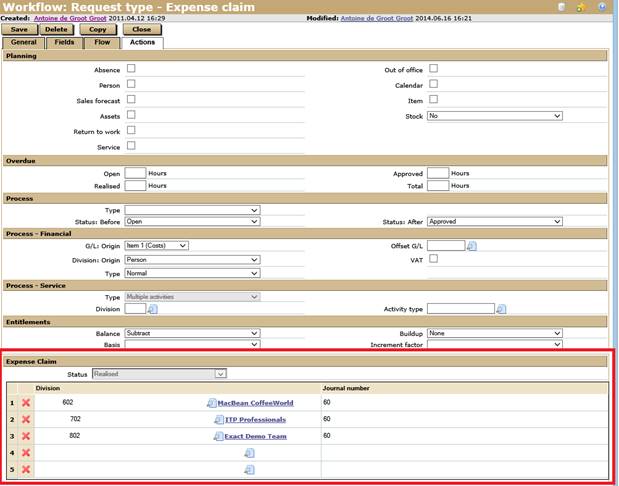
Scope
This document will include instructions on how to create an ASCX user control and how to use this user control.
Prerequisites
Before you can create a user control for lines, the following is required:
- Completed lines metadata definition.
Creating Configuration page
Creating the user control
Create a configuration user control to allow users to fill in all the required information. See the following steps:
Note: You can refer to the ECUserControl.ascx target as a sample script.
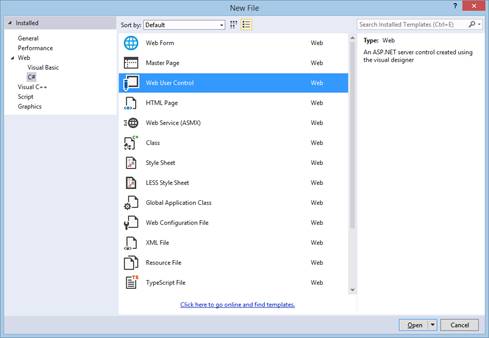
- Create a web user control.
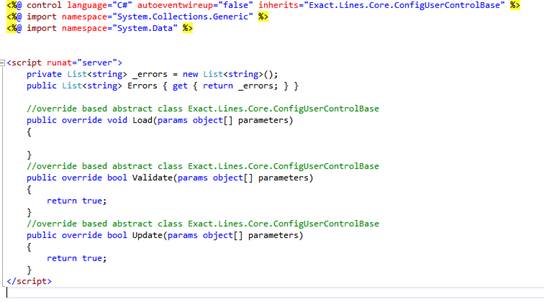
- Inherit abstract class Exact.Lines.Core.ConfigUserControlBase and override all abstract function.
- Draft the required field in the user control.
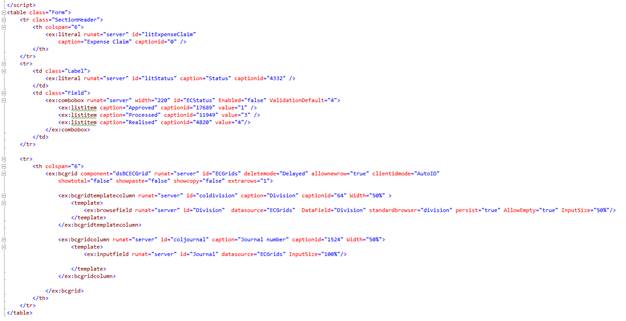

Note: You can choose to save all the configuration values to the XML metadata definition under the <configurations> elements. This is not compulsory as you can save them to other
places.
<metadata
code="1" active="true">
<id>e4426e2f-ab1d-4dfa-aa2a-1d48b40c3d03</id>
<name>Expense
claim</name>
<description>Expense Claim Lines Metadata</description>
<version>5.254.0.0</version>
<uicontrols>...</uicontrols>
<extension>... </extension>
<configurations>
<config name="division" value="602">
<elements>
<element name="journal" value="60" />
</elements>
</config>
<config name="division" value="802">
<elements>
<element name="journal" value="60" />
</elements>
</config>
</configurations>
</metadata>
- Load the XML metadata definition. The following is a sample script used to load the metadata definition:
private Metadata GetMetadata(String
MetaID)
{
QueryBuilder q = new QueryBuilder(this.conn);
q = new QueryBuilder(this.conn);
q.Select = "Definition";
q.From = "XmlDefinitions";
q.AppendWhere("ID",
MetaID);
var res = this.conn.Query(q,
EDLQueryOptions.SingleValue);
if (res == null)
{
MetaID = Guid.NewGuid().ToString();
return new Metadata();
}
return Metadata.Deserialize(((object[,])(res))[0,
0].ToString());
}
After loading the metadata, the following script will return the list of configurations:
reqMetadata
= GetMetadata(Request.QueryString["ID"])
reqMetadata.Configurations
- Fill in the functional logic in the functions of Load, Validate, and Update.
Creating the UI config provider
The UI config provider is the provider that loads the configuration user control and executes
the user control function. Firstly, create a class and inherit
the UI config provider base class. Then, override function
GetConfigUserControl.
Note: You can refer to the Exact.Lines.Workflow.ExpenseClaim.dll\ ECUIConfigProvider.cs target as a sample script.
public class ECUIConfigProvider : UIConfigBase
{
public override ConfigUserControlBase
GetConfigUserControl()
{
return (ConfigUserControlBase)page.LoadControl("~/docs/ECUserControl.ascx");
}
}
Defining the UI config provider in metadata definition
Until this stage, the user control and UI
config provider have been created. Now you need to set the name of the UI
config provider to the metadata definition XML so that the page contains the Configuration
page. You can load this XML to get the name of the UI config provider, then call
the provider to load the Configuration page via the Line Engine. You
need to put only the class name into elements <configui>, the namespace
will follow the <namespace>.
Note: You can refer to the data in the Exact Synergy Enterprise database
table xmldefinitions as sample script.
<metadata
code="1" active="true">
<id>e4426e2f-ab1d-4dfa-aa2a-1d48b40c3d03</id>
<name>Expense
claim</name>
<description>Expense Claim Lines Metadata</description>
<version>5.254.0.0</version>
<uicontrols>...</uicontrols>
<extension>
<class>ECProvider</class>
<configui>ECUIConfigProvider</configui>
<namespace>Exact.Lines.Workflow.ExpenseClaim</namespace>
</extension>
<configurations>...</configurations>
</metadata>
Loading the config UI user control into the Configuration page
The following sample scripts explain the loading of the user control. For an example of an expense claim configuration user
control, if the request type is not using lines, the Configuration page will not be displayed on the setup page.
Note: You can refer to the wflrequesttype.aspx target as a sample script.
Initialize user control
'Get
xml metadata definition
reqMetadata
= GetMetadata(bc("ID").Value)
'Pass
in metadata, the function will look into <configui> and create instance
of ui provider
_ConfigUIProvider
= Engine.CreateUIConfigProvider(reqMetadata)
If Not
_ConfigUIProvider Is Nothing Then
_ConfigUIProvider.Initialize(Page,
ContainerName)
End If
Load user control
_ConfigUIProvider.Load()
Validate user control
_ConfigUIProvider.Validate()
Update user control
_ConfigUIProvider.Update()