SECTION I
SECTION I - MAXCS.INI
The MAXCS.INI is a text file holding several values that
Kewill.Integrate will use for writing and querying purposes.
1) The
MAXCS.INI file must be in the same folder as the for it to be utilized
KIRUN.EXE. The default location is C:\Kewill\Integrate.
2) The
following are the MAXCS.INI parameters:
A)
The parameter:
DataPath=
Used
to set the location where text files will be written by Kewill.Integrate.
Example:
DataPath=C:\Clipper
B) The parameter:
ClipperEXE=
Used
to set the location of where the Clipper executable file will be located. This
will be used by Kewill.Integrate to automatically startup Clippership if it is
not already loaded.
Example:
ClipperEXE= C:\KEWILL\CSWIN\CSWIN.EXE
SECTION II - DSN Locations
Kewill.Integrate uses the computers registery to determine
which MAX DSN to use.
1) The
following register key is used to determine the location:
HKEY_CURRENT_USER\Software\MicroMRP\Executive\DataManagerMaxDSN
SECTION III - SETTING UP NO CHARGE BUTTON
The following steps are taken to enter an item into
Clippership without placing a charge on it.
1) In
Clippership click on Utilities > System Setup > Custom Function > Add.
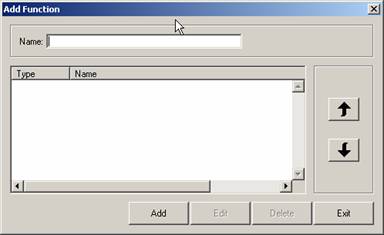
The “Add Function” window above
will be shown.
2) In
the Name field type NO CHARGE and click Add.
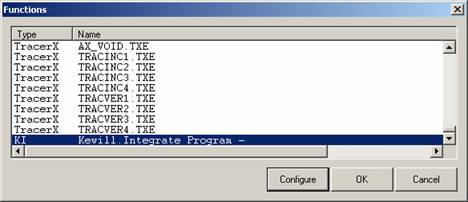
The”Functions” window above will be
shown.
3)
Select the KI Type as seen above and click Configure.
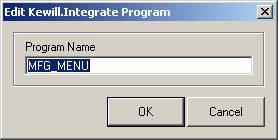
The window above will be shown.
3) Type
MFG_MENU and click OK.
4) At
the “Functions” window click OK.
5) At
the “Add Function” window click Exit
6) Click
on Utilities>Workstation Setup>Toolbar
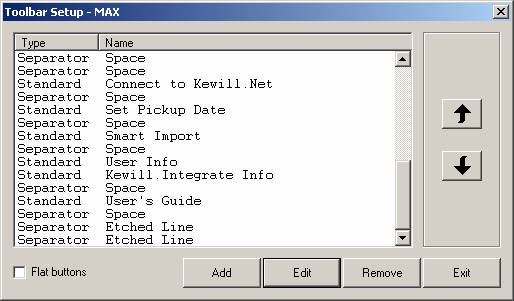
The “Toolbar Setup” window will be
displayed.
7) Click
on Add.
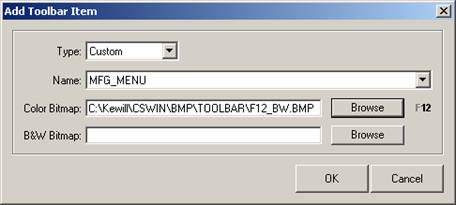
Select Custom for the Type,
MFG_MENU for the Name and then select a bitmap for the Color Bitmap. Click OK.
8) Click
Exit at the “Toolbar Setup” window and you’ll be all set.
SECTION IV - CHANGING HOTKEYS
If there is a need to change which hotkeys will launch the
Clippership integration, the following will explain how to do so.
1) Open
the Kiproject.kip file with Kewill.Integrate.
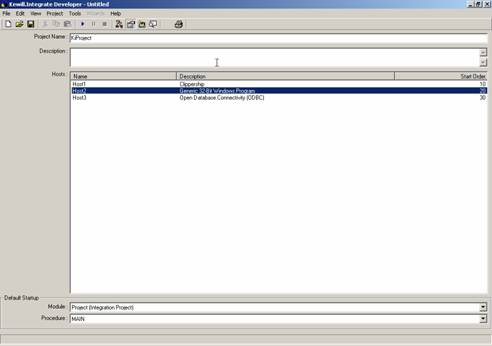
The “Kewill.Integrate Developer”
window will be shown.
2) Right
click on Host2 and select Properties.
3) Click
on the button next to the Hostkeys as shown below.
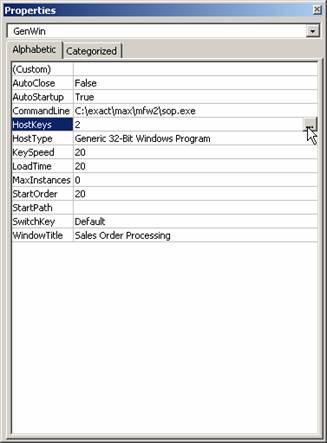
4)
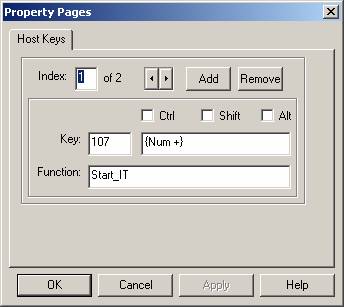
Click press the key you wish and check if Crtl, Shift or Alt should be
pressed at the same time. Type “Start_IT” in the Function field and the click
OK.
4) Click
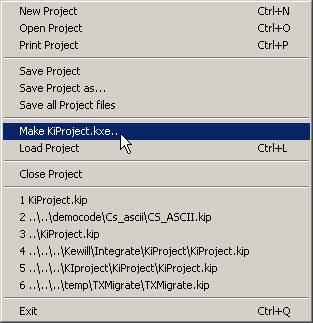
on File > Make KiProject.kxe to recompile the project.