How-to: Setting up Field Service H app environment for Service management solution
Introduction
In Exact Synergy Enterprise, the Service management solution is used to optimise the service activities of the wholesalers and manufacturing companies who are handling services for the products they are selling.
With the Field Service H app, you can access
the Service management solution in Exact Synergy Enterprise
from a table or phone (iOS, Android, or Windows). The Field Service H app is
the Service management application software for mobile usage.
Description
In this document, you will be guided through the step-by-step procedures for installing and configuring the Field Service H app for Exact Synergy Enterprise.
Note: The service engineers must have the access right for the main warehouse in Exact Globe Next because the main warehouse will be used in the hour entry lines in the service activity. Without the access right, the Field Service H app will not display any activities.
Pre-requisites
Before installing the Field Service H app, the following must be present:
- You must have the Service management solution based on Exact Synergy Enterprise product update 250 (with the latest update) or higher and Exact Globe Next product update 405 or higher installed.
- Make sure that the Service management solution in combination with Exact Globe Next is functioning properly.
Note:
You can use either the Basic Authentication or Microsoft Windows Authentication method in
the virtual directory for the Field
Service H app but not both at the same time. When the virtual directory for
Exact Synergy Enterprise has both the authentication methods enabled, a
separate virtual directory must be created for the Field Service H app.
Installing Windows Communication Foundation version 5.0
After creating the Exact Synergy Enterprise web site with the Basic Authentication or Microsoft Windows Authentication method enabled, you need to run and install Windows Communication Foundation 5.0 (WCF 5.0) on the Internet Information Server. You can download WCF 5.0 from the following link, http://www.microsoft.com/en-us/download/details.aspx?id=29306
Note: The Microsoft WCF Data Services 5.0 release is shipped with Exact Synergy Enterprise product update 251 and Exact Globe Next product update 406 onwards to facilitate the automatic installation of Microsoft WCF Data Services 5.0 in Exact Synergy Enterprise and Exact Globe Next.
Therefore, when you update to Exact Synergy Enterprise (product update 251 and above) or Exact Globe Next (product update 406 and above), the Microsoft WCF Data Services 5.0 component will be installed automatically in the system. For more information, see How-to: Automatic installation of WCF Data Services 5.0 in Exact Globe Next and Exact Synergy Enterprise.
Ensuring the adherence to REST protocol in the Exact Synergy Enterprise web site
The next step that you need to do is to make sure that the REST protocol is supported in the newly created web site. The Field Service H app, which is the Service management application software used for mobile devices, uses the oData and REST protocols for retrieving, updating, and deleting data on the Exact Synergy Enterprise server.
Note: If the REST protocol is not configured correctly, you may face problems, especially while updating (the PUT and MERGE methods) and deleting (the DELETE method) data on the web server.
Before you start using the Field Service H app, you need to verify the following on the Exact Synergy Enterprise web server:
The application pool selected for the web site has NetworkService, ApplicationPoolIDentity, or any specific identity.
To verify the above condition, do the following:
- Go to the Internet Information Services (IIS) Manager screen.
- Select Application pools from the Connections pane.
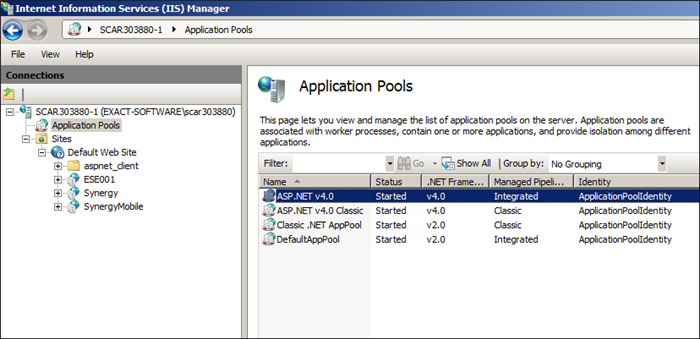
- Make sure that the Identity column of the application pool, in which the web site is running, has a valid identity.
For example, in the following screen, the web site that is running on the application pool ASP.NET v4.0 has ApplicationPoolIDentity as the identity.
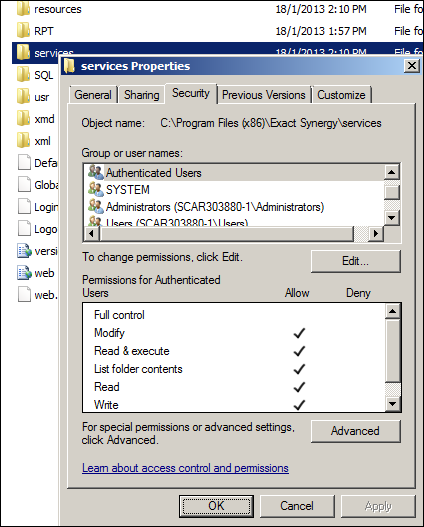
The Authenticate Users group has the Modify, Read & execute, Read, and Write rights
To verify the above condition, do the following:
- Go to the Exact Synergy Enterprise installation folder.
- Right-click services folder. The Services Properties screen will be displayed.
- Select the Security settings option.
- Select the Authenticated Users group under the Group or user names: section.
- Make sure that the Authenticate Users group has the Modify, Read & execute, Read, and Write rights enabled, as shown in the following screen:
WebDAV module should not be enabled in the web site
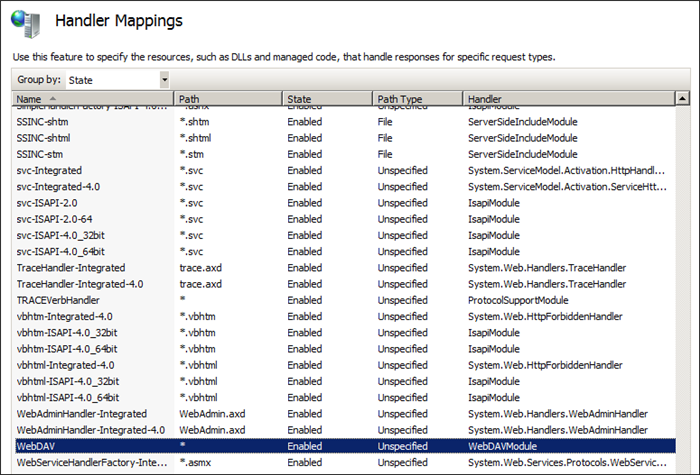
Additionally, you need to make sure that the WebDAV module is not enabled in the web site. The WebDAV module has a different implementation procedure for the DELETE and PUT methods. This may interfere with the DELETE and PUT methods of the oData and REST protocols.
To verify the above condition, do the following:
- Go to the Internet Information Services (IIS) Manager screen.
- Double-click Handler Mappings from Features View.
- Check whether the WebDAV module exists. If it exists, click WebDAV and select Remove, as shown in the following screen:
Opening up the network port for Bi-directional communication
The next step is to open up the network port 443 on the firewall of the system to allow bi-directional communication between the mobile devices and the corporate network. Please contact your network administrator to arrange this.
Configuring users for the Service management solution
You will also need to configure the appropriate rights for the relevant users to access the Service management operations in Exact Synergy Enterprise.
In order to access the Field Service H app and Exact Synergy Enterprise, the users must have the following:
- The Professional or CRM role.
- The Service management role.
- The Service engineer role or roles with higher rights.
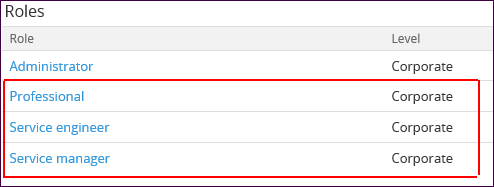
The personal card of a user with the above roles is shown below.
Note:
-
The Service management and Service engineer roles must be at the Corporate level, as the Service management related roles perform according to their function rights when linked to the Corporate level.
-
In order to access the Field Service H app, function right 1002 - Service Management Mobile Access must be assigned to the relevant user roles. By default, the Service engineer role has the function right 1002 - Service Management Mobile Access.
To assign the function right 1002 - Service Management Mobile Access to any relevant user roles, do the following:
- In Exact Synergy Enterprise, go to System > Setup > Security > Function rights.
- Select the Service management module and click the corresponding number which indicates the number of function rights the module contains.
- On the System: Functions page, click 1002 under the ID column.
- On the System: Function page, click Edit.
- Click New under the Roles section.
- On the System: Function – Role page, select Service engineer at the Role field.
- Click Save.
Scheduling background jobs to remove the documents created temporarily
Each service delivery note that is requested by the service engineer from the mobile application will be generated as a document in Exact Synergy Enterprise. If the delivery note is returned to Exact Synergy Enterprise without a signature (mobile signing), the document remains for a period of eight hours in the server, after which it will be deleted automatically.
Note: You need to set up bdscheduler to delete the unsigned delivery notes automatically. For more information, see Exact.Jobs.Documents.
Testing the Service management solution
In order to test the Service management solution, you need to do the following:
- Restart the web server where the Internet Information Server (IIS) is running.
- On the device, provide the following information:
- The URL of the newly created Exact Synergy Enterprise web site.
- The domain username (for example, <domain>/<username>)
- The password for the username.
- Select Save.
Note: If you cannot restart the web server due to any possible reasons, you can restart the Exact Synergy Enterprise sites (the newly created and the existing web sites) manually.
Now, the Field Service H app will try to connect to the Exact Synergy Enterprise web server. If the connection is made successfully, you will be redirected to the main menu on your device. The connection will fail if you provide any incorrect credentials regarding the mobile device.
Why am I unable to connect the mobile application to Exact Synergy Enterprise?
The following are some of the reasons due to which you may not be able to connect the mobile application to Exact Synergy Enterprise:
- The mobile application does not support forms authentication.
- The Exact Synergy Enterprise environment in your system is available only when the VPN (Virtual Private Network) is activated. You can verify it by trying to connect to your Exact Synergy Enterprise environment using the Safari browser.
- The password of your account in Exact Synergy Enterprise contains either the ‘@’ or ‘:’ characters. This scenario would be handled in the future release of the mobile application and therefore, you should be able to connect the mobile application to Exact Synergy Enterprise even if your account contains any of the mentioned characters.
For more information, see Frequently asked questions Exact Synergy App.
How do I proceed when the message “Error: Could Not Determine SQL-Server or Database” is displayed while running the mobile application?
In the case of Exact Synergy Enterprise:
- You need to check the configuration file (db.config). By default, this file is located at C:\Users\Public\Exact Synergy Enterprise Exact Synergy directory.
- Define the configuration file as explained in the document Exact Synergy Enterprise: Installation Manual.
Related documents
| Main Category: |
Attachments & notes |
Document Type: |
Online help main |
| Category: |
|
Security level: |
All - 0 |
| Sub category: |
|
Document ID: |
24.428.731 |
| Assortment: |
Exact Synergy Enterprise
|
Date: |
01-07-2022 |
| Release: |
|
Attachment: |
|
| Disclaimer |