Revision Date: 04/08/2013
Module: System
Version: Progression 7.7.6xx
Description: Replacing the old SQL Server and moving Progression databases to it. The application server will remain unchanged. The following outline is necessary to properly move the databases and properly configure the application server to see the new SQL Server.
Solution Step 1: The following list of instructions will need to be followed for the New SQL server:
1. Install Microsoft SQL server as the default option, not an instance, using mixed mode authentication.
Beginning with Progression 7.7.600, this version of Progression software will run on the Microsoft SQL 2008r2 server platform. Earlier versions of Progression software will need to be updated before moving to this platform.
Please Note: log on to the network as the "Domain Administrator".
Prerequisite: For SQL 2008r2 you will need to install the SQL 2005 backward compatibility components on the server and client side to run Visual Menu Builder and the Progression Setup Utility.
Please Note: Because of the technical nature of the next step the compatibility components should be completed by a qualified SQL server IT person or Exact Business Partner. Exact can recommend an Exact consultant to help as well. Please contact your Exact account manager.
Click on the following link for your specific version.
2. Log into Progression as the SUPERVISOR, and change the Progression Supervisor's password to "SUPERVISOR" on the current SQL server. Log back into into Progression as SUPERVISOR to verify the change has taken place.
3. From the old SQL server, detach the SCREENS, PWE, MSLLOCKDB, and all Progression DATA databases.
4. Copy the SCREENS, PWE, MSLLOCKDB, and all Progression DATA databases to the new SQL server and attach them.
5. Start Management Studio, File, Open, File, navigate to the Progression installation folder (ie: Macsql), open the SQLScript folder and select the msl_locking.sql script. Change the dropdown arrow on the toolbar from MASTER to MSLLOCKDB and execute the SQL script.
6. From Management Studio, New Query, execute the following against ALL Progression databases:
(SCREENS, PWE, MSLOCKDB, and all Progression DATA databases)
sp_dropuser supervisor_sql
sp_dropalias supervisor_sql
7. From Management Studio, File, Open, File, navigate to the Progression installation folder (ie: Macsql), open the SQLScript folder and select the User7.sql script. Change the dropdown arrow on the toolbar to MASTER and execute the SQL script.
8. From Management Studio, Security, Logins, right click on SUPERVISOR_SQL, select Properties. Then select User Mapping, select each Progression databases as well as Public and DB_OWNER Database role membership for: window.
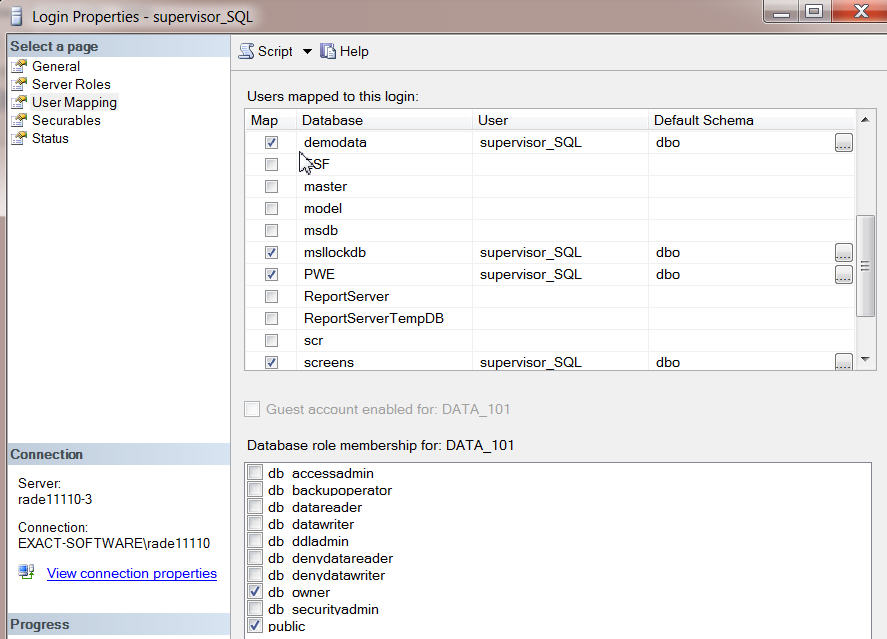 9.
9.
9. Since this was not a new Progression install there are several SQL Stored Procedures that will not be present and are needed for Progression to operate. Using the attached file (SQL 2008 Progression Stored Procedures.txt) to create the stored procedures, copy the text file to the New server. Open Management Studio, File, Open, File and navigate to where you placed this file on the server, copy and paste into New Query. Execute each SQL script against MASTER.
10. Once the SQL scripts have run, check that the scripts actually created. From Management Studio navigate to Databases, System Databases, Master, Programmability, Stored Procedures. Four Stored Procedures should be shown as...
dbo.sp_MacMSSLockEraser
dbo.sp_MSLGetLCID8
dbo.sp_MSLGetSQLVer
dbo.sp_MSLOpenTableEraser
Solution Step 2: The following list of instructions will need to be followed for the existing Application server:
1. From the Progression installation folder (Macsql) edit the file MACSQL.cfg changing each line SERVER= to designate the New SQL server name.
[SQL_INFO]
Companies_Installed=2
[Company_005]
Name=Johnnies Bakery
Server=<New SQL servername>
Database=Data_005
LOCKDB=MsllockDB
FRL=False
[Company_100]
Name=Bobbies Bakery
Server=<New SQL servername>
Database=Data_100
LOCKDB=MsllockDB
FRL=False
[ENGLISH]
Server=<New SQL servername>
Database=SCREENS
LockDB=msllockdb
2. From the Progression installation folder (Macsql) navigate to the PWE folder. Locate the PWE.tam file, uncheck read-only, then edit the file to specify the new server name.
[DbInfo]
Server=New SQL servername
Database=PWE
[WebPages]
Support-Name=Search the &Web (Google)
Support-Address=http://www.google.com
Misc-Name=Macola &Home Page
Misc-Address=http://www.macola.com
Misc2-Name=&Exact Software Home Page
Misc2-Address=http://www.exact.nl/custom/PubWebStart.asp?Language=1
3. Log into Progression as Supervisor and open System Manager, Maintain, Visual Menu Builder. From the Visual Menu Builder toolbar select, Tools, Synchronize With SQL...
Solution Step 3: The following list of instructions will need to be followed for each of the client workstations as well as the SQL server:
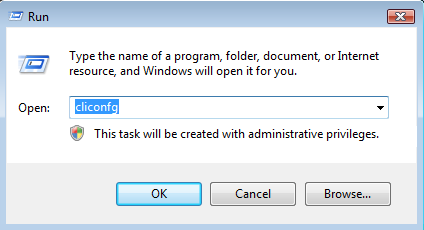
Select Start, Run and type cliconfg, then select OK.
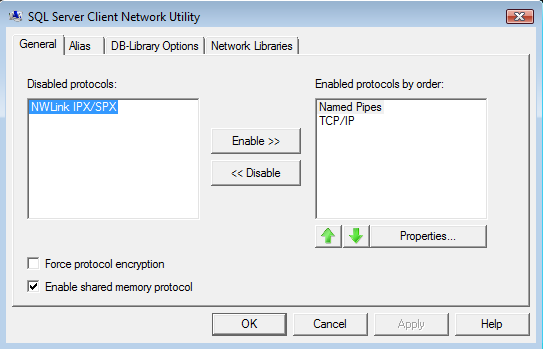
Select a protocol to enable\disable from the right hand side of the screen Enabled protocols by order.
Please Note: If selecting Named Pipes, also select the Alias tab and remove the Alias before saving any changes. You will need to confirm the Named Pipes protocol is enabled on the SQL server.
Attachments: SQL 2008 Progression Stored Procedures.txt
Key Words: Progression SQL server, application server, SQL server
Additional Resources:
Additional Knowledgebase documentation - Knowledgebase
FREE on-demand training - Americas Training Start Page