How-to: Using a document as an alternative to the CRMQuestionnaire form (advanced topic)
Introduction
The CRMQuestionnaire application allows the creation of a webpage for unregistered users to send in their responses via the public web sites, which will become a part of the Exact Synergy Enterprise workflow. Furthermore, Exact Synergy Enterprise offers the possibilities to improve the functionality of CRMQuestionnaire as well as improve the layout of the form. This document describes how to use an alternative form to CRMQuestionnaire.aspx using HTML.
Description
This document describes how to use an alternative form to CRMQuestionnaire using HTML in the following topics:
Return to top
Prerequisites
To be able to customize forms or create forms with the CRMQuestionnaire functionality, the following prerequisites must be met:
Return to top
Understanding the use of a customized form with the CRMQuestionnaire functionality
The use of a customized form with the CRMQuestionnaire functionality works as explained in the following structure:

The customized form is a "layer" on top of the functionality. You can customize the layout of your form, but it is not possible to customize the business logic of the functionality. Once created, you can make the form available to your customers and visitors by creating a link to the application directly on your web site, in the Customer Portal, or mailing the form to your accounts.
In the link, you can add a few parameters that will influence the way the question is handled. The following parameters can be used:
The following example displays the entry application for reseller information that will generate a request for a password for the reseller.
CRMQuestionnaire.aspx?Question=Please+provide+a+password+for+the+Reseller
+Portal&NoLogin=1&CType=R&RequestType=103&MailCountry=NL
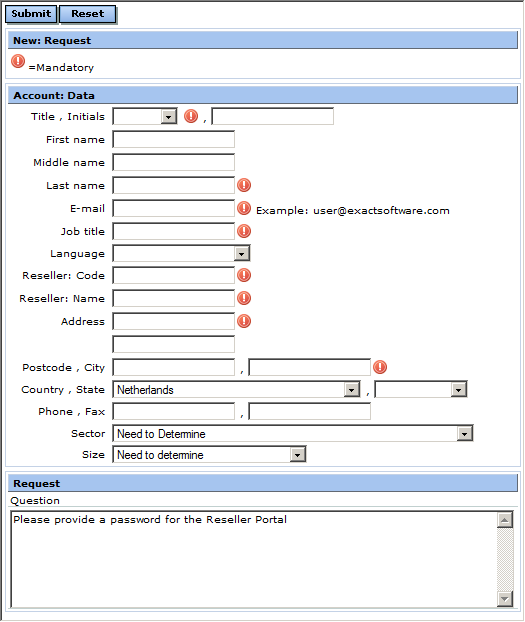
People who access the application will see a form in which they can fill and ask a question.
After a user has submitted the form, a non-validated account will be created with the information that is entered in the form. A new request will be created with the created account linked to it. The request will be displayed in the workflow of the user(s) who is(are) defined in the definition of the request.
To customize the form as to how it will be displayed on a website, you can create your own form with the CRMQuestionnaire functionality.
Return to top
Customizing forms with the CRMQuestionnaire functionality
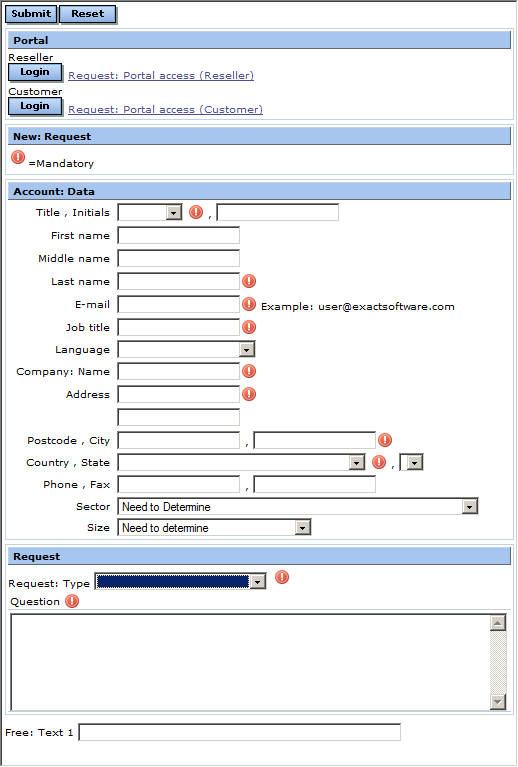
Fields and options
Since Exact Synergy Enterprise creates a non-validated account, there are several fields and settings that have to be included in the form. The following example shows how these fields can be implemented.
|
<INPUT NAME=[FIELDNAME] MAXLENGTH=50 STYLE="WIDTH: 265px" LANGUAGE=VBS onchange="window.InvalidFlag_[FIELDNAME].innerHTML=Empty">
<SPAN ID=InvalidFlag_[FIELDNAME]>
<font color="#ff0000" size="4"> <strong>!</strong></font>
</SPAN> |
Replace the value [FIELDNAME] with the appropriate field names. The field names that can be used are:
-
cnt_Title – This is a salutation which will be stored as the salutation of the contact person. This field is required.
-
cnt_initials – This refers to the initials which will be stored as the initials of the contact person.
-
cnt_LastName – This refers to the last name which will be stored as the last name of the contact person. This field is required.
-
Email – This refers to the e-mail address of the account. This field is required.
-
cnt_JobDescription – This refers to the job description of the contact person. This field is required.
-
cnt_Language – This refers to the language of the contact person.
-
CCode – This refers to the company code.
-
Name – This refers to the company name. This field is required.
-
MailAddress – This refers to the address of the company. This field is required.
-
MailAddress2 – This refers to the second address line of the company.
-
MailPostCode – This refers to the postal code of the company.
-
MailCity – This refers to the city of the company. This field is required.
-
MailCountry – This refers to the country of the company.
-
MailState – This refers to the state of the company
-
phone – This refers to the phone number of the company.
-
fax – This refers to the fax number of the company.
-
IndustrySector – This refers to the sector which the company belongs to. This field is required.
-
CompanySize – This refers to the size of the company. This field is required.
-
RequestType – This refers to the type of request that is specified by the contact person.
When you do not want to use required fields from the form, you can hide them from the user. For example, if it is not necessary for a user to enter an industry sector or company size, you can use these values in the hidden fields. To hide the industry sector and company size, two hidden fields will be created as follows:
|
<INPUT TYPE=hidden NAME=IndustrySector VALUE="UNKNOWN">
<INPUT TYPE=hidden NAME=CompanySize VALUE="SMALL"> |
This results in the creation of non-validated accounts that always have the industry sector "unknown" and company size "small". Note that these values must be present in Exact Synergy Enterprise as valid codes. Otherwise, the account cannot be created. For more information on managing industry sectors, see Overview of sectors and for more information on managing company sizes, see Overview of company sizes.
Return to top
Free fields
You can use a limited number of free fields that will be filled with information in your request. For example, if you want the user to fill out information that needs to be stored in the free fields of the request, you can specify the name of the field in the form-tag. In the following example, the user needs to fill out information that will be stored in "Free: Text 1" of the request:
|
<INPUT TYPE="text" NAME="FreeTextField_01"> |
The free fields that can be used are:
-
FreeTextField_01 to FreeTextField_05
-
FreeDateField_01 to FreeDateField_03
-
FreeNumberField_01 to FreeNumberField_03 – this is "Free: Amount field" in the request.
-
FreeIntField_01 to FreeIntField_03 – this is "Free: Number field" in the request.
-
FreeBoolField_01 to FreeBoolField_03
Return to top
Question field
The question field is a field that you can use for information that cannot be stored in one of the previous options. For example, you can use a text area to ask the user for more information, as displayed in the following example:
<TEXTAREA name=Question rows=8 cols=60>
Please provide a password for the Reseller Portal. </TEXTAREA> |
This will create a text area with the provided information pre-filled, where the user can fill out the appropriate information. The information will be stored in the Remarks: Request box of the request that will be created upon submitting this form. You can have more than one field that is named "Question". All these fields will be combined and stored in the Remarks: Request box of the request.
Return to top
Required code
To process the form correctly, some tags are required in the customized HTML form. The following example shows the required code:
|
<BUTTON TYPE=submit CLASS=btnSubmit ACCESSKEY="S" id=button1 name=button1>Submit </BUTTON>
<BUTTON TYPE=reset CLASS=btnReset ACCESSKEY="T" id=button1 name=button1>Reset</BUTTON>
<INPUT TYPE=hidden Name=NoSave ID=NoSave Value=0>
<INPUT TYPE=hidden Name=NoLogin ID=NoLogin Value="1">
<INPUT TYPE=hidden Name=Redirect Value="1">
<INPUT TYPE=hidden Name=CType ID=CType VALUE="R">
<INPUT TYPE=hidden Name=ShowSpecial Value=False>
<INPUT TYPE=hidden Name=RequestType ID=RequestType Value="103"> |
The two BUTTON tags must be present in the form in order to let the user submit the form. The layout of the buttons can be modified, but the parameters of the tags have to be the same the example given. The red-marked number in the last line must be changed to the request ID that has to be created when this form is submitted.
Return to top
Creating a confirmation page
You need to create a page that is opened after the form has been submitted. When you want to use your own document that is opened when the user submits the form, follow these steps:
-
Create the confirmation document.
-
Open the document, right click in the document, and only select the part of the link at
Address (URL) from "DocView.aspx?..." to } the end of the link (see the following example).

-
-
Paste the url that you have copied and use the encoding functionality.
-
The result is the url you need to refer to.
If you have followed the above steps correctly, the user will be redirected to the customized document with registration. Alternatively, you can set up a response after receiving a feedback in Exact Synergy Enterprise. For more information, see Setting up a response after receiving a feedback.
Return to top
Related documents
| Main Category: |
Support Product Know How |
Document Type: |
Online help main |
| Category: |
On-line help files |
Security level: |
All - 0 |
| Sub category: |
General |
Document ID: |
23.985.681 |
| Assortment: |
Exact Synergy Enterprise
|
Date: |
22-10-2012 |
| Release: |
|
Attachment: |
|
| Disclaimer |