Fixed Assets Manual - [Master data, Maintenance, Assets, Assets]
[Master data, Maintenance, Assets, Assets]
Once you have entered all the data needed and the asset can be depreciated, you need to activate the asset in [Management, Activate assets].
! Once you activate the asset, the depreciation data on the 'General', 'Allocation', 'Depreciation' and 'Extra' tabs can no longer be changed.
Asset
Enter a unique code for the asset you are creating.
General tab
Asset set
Each asset belongs to an asset set in which the most important data for the asset are entered. Select the asset set you want to link the asset to.
Parent asset
Enable this setting if you want to use this asset as an assembled asset. A (sub)asset is created when this setting is disabled. See also Assembling assets.
Currency
Select the currency with which the asset is purchased.
Purchase price
Enter the purchase price of the fixed asset.
Date of purchase
Enter the purchase date of the asset. This date is used by the depreciation formula basic assumption for the depreciations to be generated.
Date placed in service
Enter the date placed in service of the asset. This field is used when you use conversions during depreciation. See Creating depreciation formulas.
Actual quantity
Depreciation amounts are calculated per asset. When entering a bulk asset, several items are created immediately after entering the quantity.
Depreciation costs are calculated for the aggregated value of the asset.
! This field is filled with '1' for a piece asset and cannot be changed.
Units of production
Enter the number of production units that the asset can produce after activating. When the number of production units is not used in one of the linked depreciation methods to calculate the depreciation amounts, you can leave this field empty. This field can be used in the depreciation formula, to calculate the depreciation amounts.
Allocation tab
Department
Enter the department to which the asset belongs. This field is optional, unless you have entered that a department is mandatory in [File Asset settings, General].
Location
Enter the location of the asset. This field is optional, unless you have entered that a location is mandatory in [File Asset settings, General].
Owner
Enter the owner of the asset. This field is optional, unless you have entered that a department is mandatory in [File Asset settings, General]. The field is automatically filled with the name of the person who is logged in.
Cost center / Cost unit
Enter the cost center and the cost unit to which the asset belongs. The cost center balance sheets and the cost unit balance sheets are enriched as far as the business economical transactions in the posting book on the basis of the entered cost center and cost unit are concerned. If an asset is created through the purchase journal in Exact Finance C/S, these fields are filled with the values that are entered during the creation of the entry. Depending on your financial preferences in Exact Finance C/S a cost center / cost unit is optional / disabled / mandatory. The cost center balance sheets and the cost unit balance sheets are only enriched for general ledger accounts for which the property cost center / cost unit account is enabled in [Ledger, Master data, Maintenance, General ledger accounts] in Finance. The general ledger accounts defined in the asset group should be marked as cost center / cost unit accounts beforehand.
- You can only use cost centers and cost units if you have enabled the setting optional or mandatory in [Finance menu, Ledger, Master data, Maintenance, General ledgers].
- Once you have activated the depreciation tab, all combinations of asset books and depreciation formulas through the asset set linked to this asset are displayed. Select a line by double clicking it, or use the 'Edit' button to make modifications.
- Use the 'Reset' button to undo all modifications for the line you have selected. Use the 'Reset all' button to undo all changes.
Depreciation tab
Start year/period
Enter the year and period in which the asset is put into operation and should start to be depreciated.
Remaining life years / periods
Enter the remaining life span for this asset in years and periods. the number of periods you can enter depends on the calendar. At the top of the screen on the right the number of periods in the calendar is shown. If you have linked a calendar with four periods, an input of two remaining periods means that the asset will be depreciated until half of the year. If a calendar has twelve periods an input of two periods means that the asset will be depreciated until February.
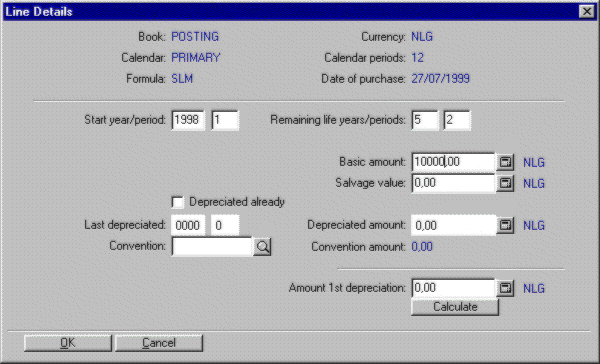
Basic amount
Enter the depreciation basic amount in the default currency. This field can be used in the definition of the formula. This field is filled automatically with the purchase price in the displayed currency. If your fiscal and you business economical basic amount are not the same (depending on local regulation), you can enter a basic amount that is not equal to the purchase price.
Salvage value
Enter the salvage value in the displayed currency. This field can be used in the depreciation formula.
Amount 1st depreciation
The amount that will be depreciated in the first period of the estimated life of the asset, is displayed in this field. This amount is calculated automatically on the basis of the entered data. The amount of the first depreciation is calculated according to the depreciation method of the linked asset set and the calendar linked to the selected asset book. This calculated amount gives the possibility to check if the depreciation formula you created is defined to your liking. You can enter a first amount of depreciation that differs from the depreciation formula. In this case only the first period of the asset will show a different depreciation amount. The other periods will be calculated according to the defined formula. Click 'Calculate' to recalculate the amount of first depreciation according to the new settings.
- In the tab 'Extra', additional information on the financial settlement of the depreciation transactions can be entered.
Extra tab
Receipt number
Enter the invoice number of the purchase invoice of the fixed asset. If you purchase an asset through the purchase journal in Exact Finance C/S the invoice number is generated automatically on the basis of the data of the purchase entry.
Creditor
Enter the supplier of the fixed asset. Creditors created in [Creditors, Master data, Maintenance creditors] (Exact Finance C/S) can be selected. If you purchase an asset through the purchase journal in Exact Finance C/S the creditor number is filled automatically on the basis of the data of the purchase entry.
Subsidy amount
Enter the amount for which the fixed asset is subsidized (in the presented currency). This field can be used in a depreciation formula.
Insured value
Enter insurance value of the fixed asset. This field can be used in a depreciation formula.
Finance Manual C/S > Contents > Working with fixed assets > Creating assets > [Master data, Maintenance, Assets, Assets]
XEightFourThreeX
| Main Category: |
Support Product Know How |
Document Type: |
Support - On-line help |
| Category: |
On-line help files |
Security level: |
All - 0 |
| Sub category: |
Details |
Document ID: |
06.841.146 |
| Assortment: |
Exact Financials (v3)
|
Date: |
22-11-2007 |
| Release: |
|
Attachment: |
|
| Disclaimer |