Overview of Converted Document Types
Introduction
There are three different modes of document structures in Exact Synergy Enterprise as listed below:
- Document category structure only
- Document category, and converted and ordinary document type structures (Classic mode), and
- Document type structure (Standard mode).
If the latest product updater is executed on Exact Synergy Enterprise, which is not in the Classic or Standard mode, the document structure is automatically converted to the Classic mode.
- A converted document type group is automatically created for every main category, and
- A converted document type is automatically created for every combination of category and sub category converted, and linked to the corresponding converted document type group.
The descriptions for converted document type groups and document types are differentiated from the ordinary document type groups and document types with a preceding “*”. Once in the Classic mode, you can obtain an overview of converted document types by converted document type groups at this screen.
However, if the document structure is changed to the Standard mode via the migration tool, or by performing a new installation of Exact Synergy Enterprise via the latest installer, this screen and the corresponding menu path will be unavailable as the converted document structure is not applicable. The features are summarized in the following diagram:
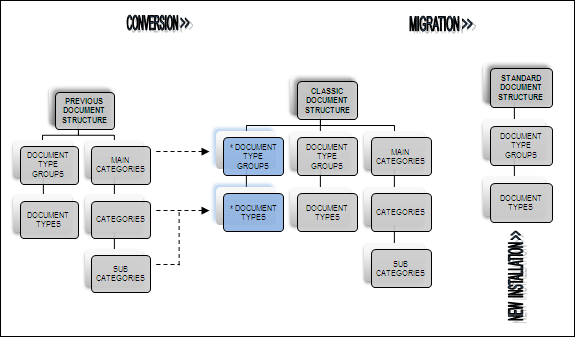
Note: *Document type groups and *Document types indicate inactive document type groups and document types, respectively.
Menu path
Documents/Setup/Maintenance/Document: Types (Converted)
Note: This path is available only in the Classic mode for document structure. For more information, see Document Structure in Classic Mode.
Roles & rights
All users can view this screen.
For more details on what you can do with function rights or levels, go to System/Setup/Security/Function rights, select the required module, and then click on the relevant ID. To find out the functions you can perform with a particular role, go to System/Setup/Security/Roles, type in the description, click Refresh, and then click the required link under the Role column.
Button
Close
Click this to exit.
Description
Converted document types section
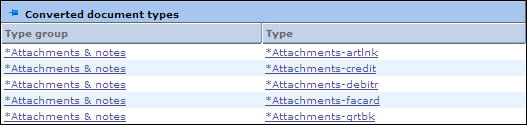
Type group
This column displays converted document type groups. Click the hyperlink to view or maintain a converted document type group. For more information, see Creating and Modifying Document Type Groups.
Type
This column displays converted document types. Click the hyperlink to view or maintain a converted document type. For more information, see Creating and Modifying Document Types.
Note: To activate a converted document type, remove “*” from the description. Once activated, the document type and the corresponding document type group will be displayed in the overview of document types, and the document type will be removed from the overview of converted document types. For more information, see Overview of Document Types. You can then create documents using the activated document type.
Related document
| Main Category: |
Support Product Know How |
Document Type: |
Online help main |
| Category: |
On-line help files |
Security level: |
All - 0 |
| Sub category: |
Details |
Document ID: |
17.988.638 |
| Assortment: |
Exact Synergy Enterprise
|
Date: |
04-10-2010 |
| Release: |
240 |
Attachment: |
|
| Disclaimer |